How to Block or Disable USB Storage Devices in Windows 11/10
Disabling USB storage devices in Windows is an effective way to prevent unauthorized data access and improve system security. In this guide, we will look at how to disable USB storage devices in Windows 11 and Windows 10 using Group Policy.
We will cover two scenarios:
- Blocking USB storage devices system-wide (all users)
- Blocking USB storage devices for specific users or groups
Note on Active Directory: This guide is for standalone Windows computers. If your computer is part of an Active Directory domain, you will apply the same Group Policy setting, but you must do it through the Active Directory Domain Controller.
Method 1: System-Wide USB Storage Denial (All Users)
In this first example, we apply the configuration system-wide, which means all users on the computer will be denied access to USB storage devices.
Open Microsoft Management Console (MMC)
To begin, open Microsoft Management Console (MMC):
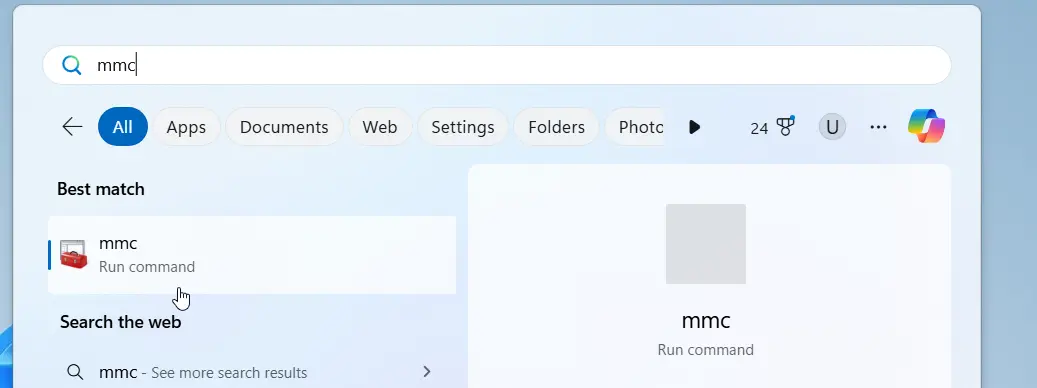
- Click the Start button
- Type MMC
- Select MMC – Run command
Add the Local Group Policy Snap-in
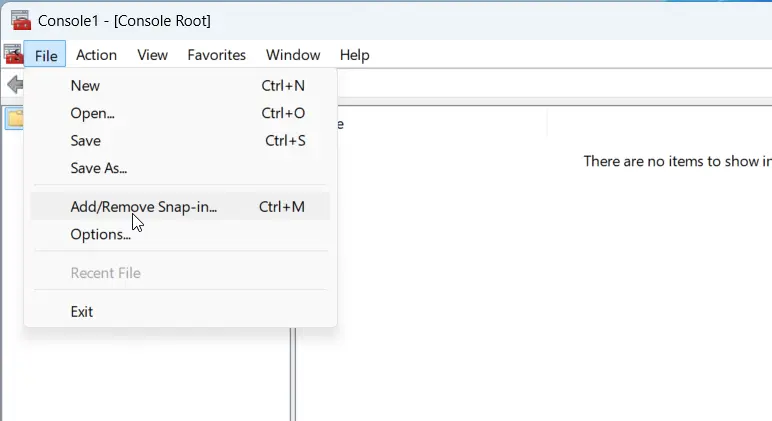
- In the MMC window, go to File > Add/Remove Snap-in.
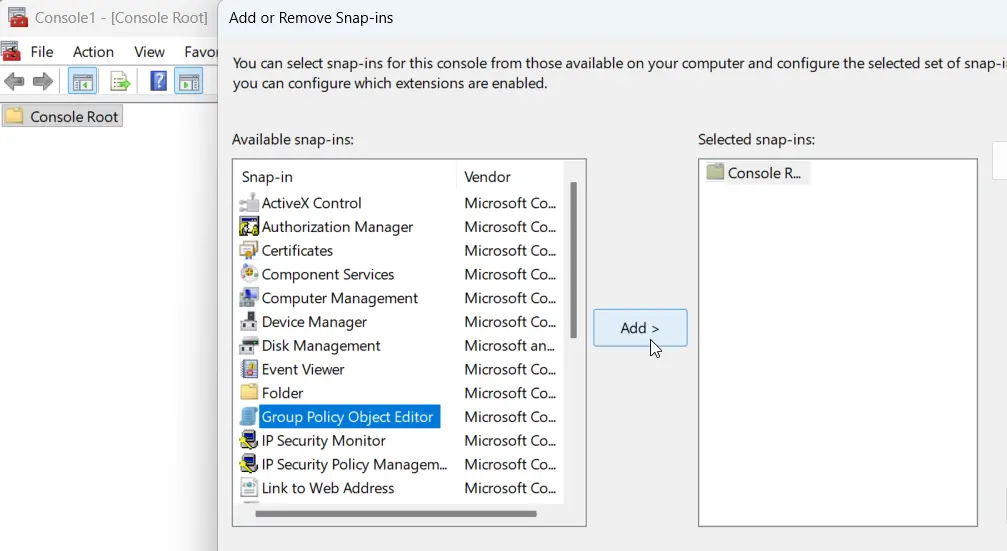
- Select Group Policy Object from the list and click Add.
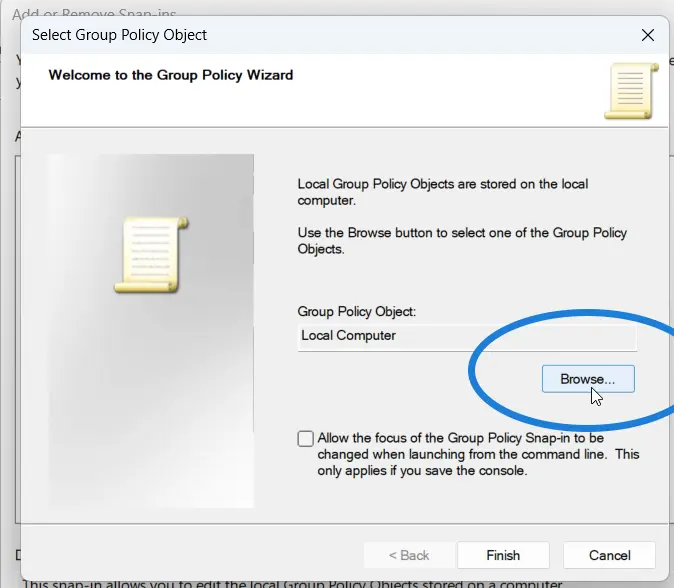
- Ensure Local Computer is selected (since we are doing a system-wide configuration). If it's not, click Browse and select this computer.
- Click Finish, then OK.
Configure the USB Storage Policy
Navigate to:
- Computer Configuration
- Administrative Templates
- System
- Removable Storage Access
Double-click All Removable Storage Classes: Deny all access. Set the policy to Enabled, then click OK.
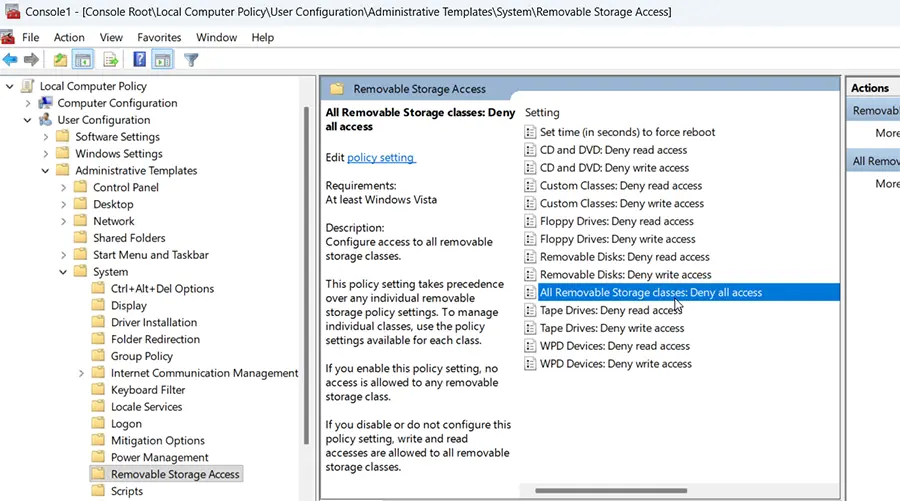
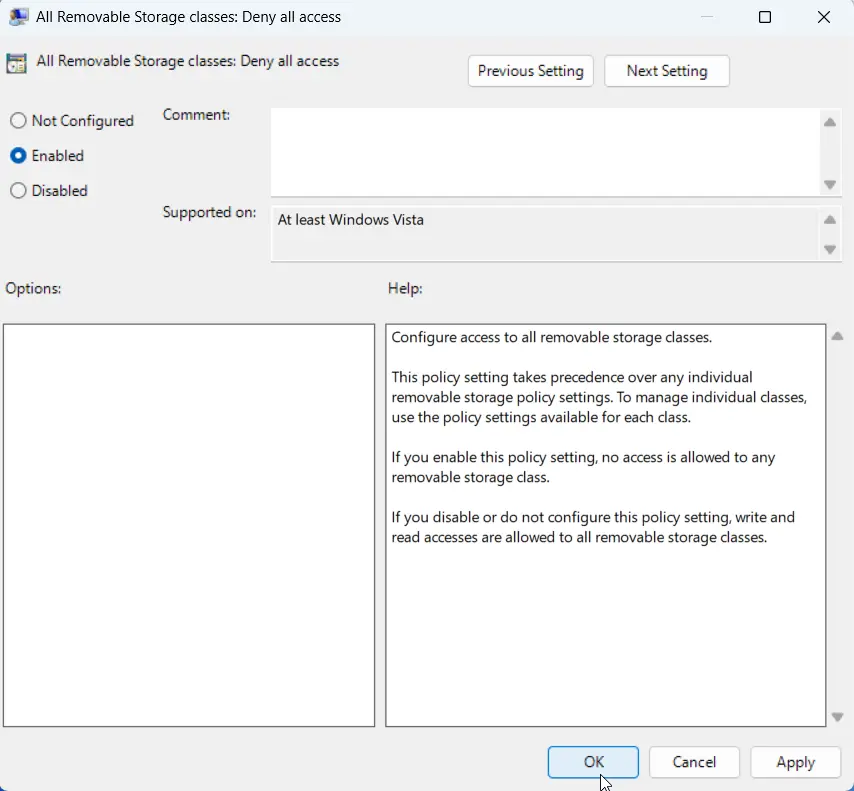
This setting disables all USB storage devices for every user on the computer.
Save the Console (Optional but Recommended)
Before closing the window, it's helpful to save a shortcut to this management console for quick access later.
- Go to File > Save As.
- Save the file (e.g., Disable USB all users) to your Desktop.
Apply the Policy Changes
For the setting to become effective, you must either run the gpupdate /force command in the Command Prompt or restart the computer. Restarting is recommended for a full application.
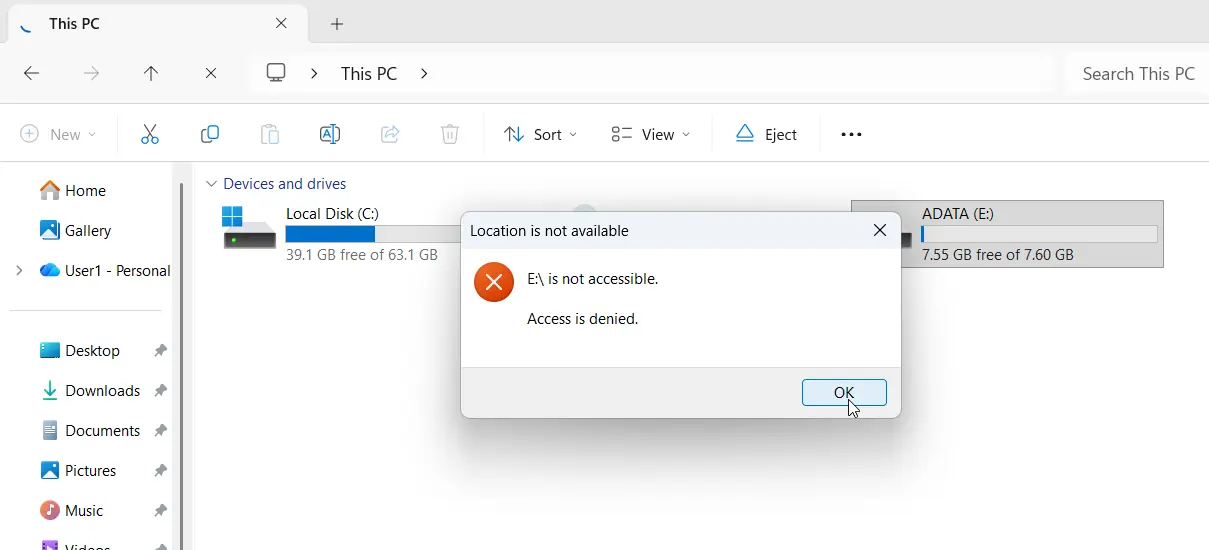
After the restart, insert a USB device. When you try to access it via File Explorer, you should see an Access Denied message, confirming the system-wide denial is working.
Undoing the System-Wide Setting
To revert this change:
- Open the Management Console shortcut you created.
- Navigate back to Removable Storage Access.
- Double-click
All Removable Storage Classes: Deny all access. - Change the setting back to Not Configured.
- Click OK.
- Restart your computer to apply the change.
Method 2: Disable USB Storage Devices for Specific Users or Groups
In this method, we block USB storage devices only for specific users or groups, while allowing other users (such as administrators) to continue using USB devices. The most efficient way to target multiple users is by using a group.
Create a New Management Console and Target a Specific User or Group
You must create a new management console snap-in for this targeted configuration.
- Open MMC again.
- Go to File > Add/Remove Snap-in.
- Select Group Policy Object and click Add.
- Click the Browse button.
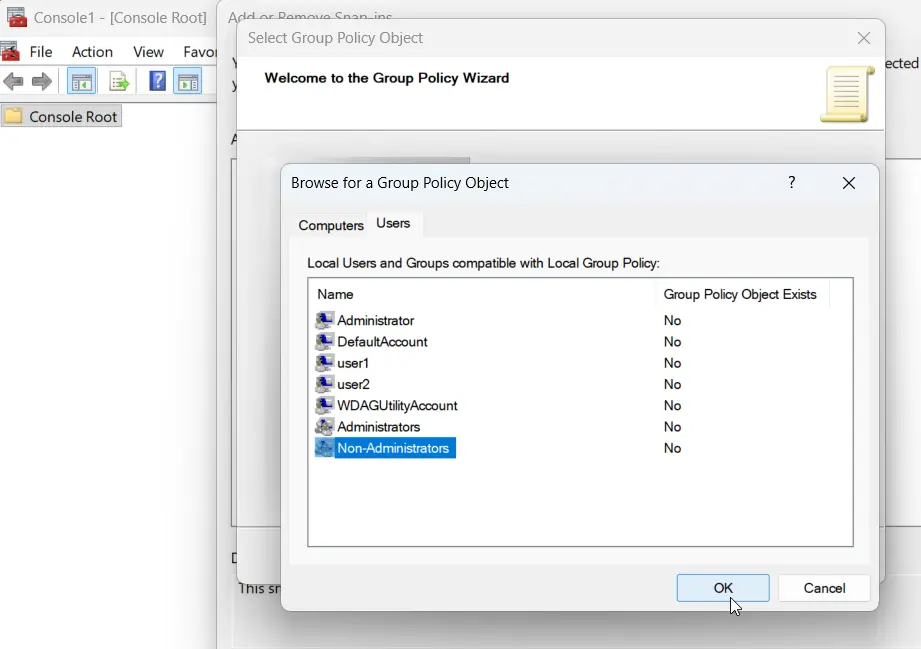
- Go to the Users tab.
- Select the group you want to target (e.g., Non-Administrators).
- Click OK, then Finish, then OK.
Applying this to Non-Administrators will deny standard users but allow administrative users to continue accessing USB devices.
Navigate and Configure the Setting
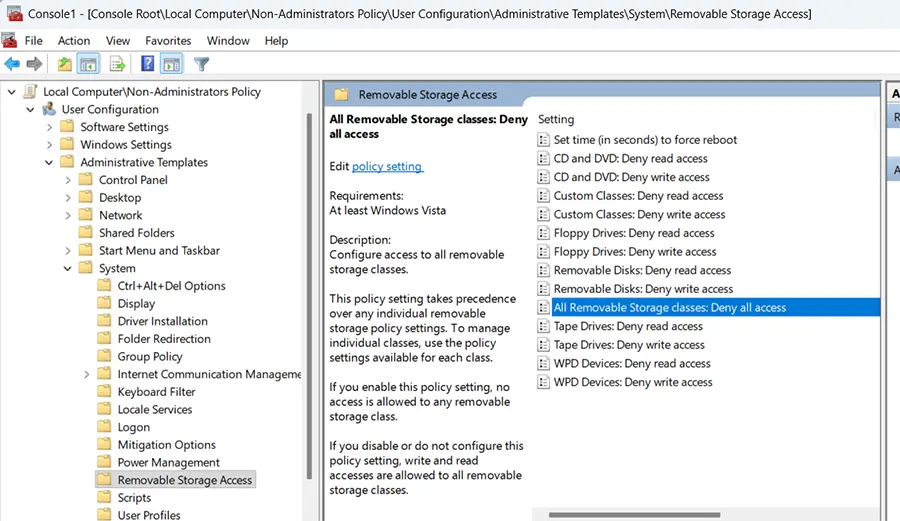
This time, you will navigate under User Configuration, Navigate to:
- User Configuration
- Administrative Templates
- System
- Removable Storage Access
Then, open All Removable Storage Classes: Deny all access and set it to Enabled.
Apply and Test the Setting
Save the MMC console if needed, then restart the computer.
- Test with a Standard User: Log in as a non-administrative user. When trying to access the USB drive, it should show Access Denied.
- Test with an Administrator: Log in as an administrative user. This user should still be able to access the USB device, confirming the configuration is working only on the targeted group.
Important Note About Group Policy and MMC Shortcuts
Deleting an MMC shortcut does not remove the policy. It only deletes the shortcut—the Group Policy setting remains active.
If you delete the shortcut or didn’t create one, you need to create a new MMC console the same way to reconfigure the USB settings.
Conclusion
This is how you can disable USB storage devices in Windows 11 and Windows 10, either system-wide or for specific users or groups, using Group Policy on a standalone Windows computer.
This method is useful for improving security, preventing data leaks, and controlling USB access in Windows environments.