How to Enable Hyper-V on Windows Server 2025 (Step-by-Step Guide)
Hyper-V is Microsoft's built-in hypervisor, and it's not turned on by default on Windows Server 2025. If you want to run virtual machines on your server, you'll need to enable it first through Server Manager. In this guide, we'll walk through the whole process, from opening Server Manager to confirming Hyper-V is working in Hyper-V Manager.
What You'll Need
- Windows Server 2025 with administrator access
- A server that supports hardware virtualization (this should already be enabled in BIOS/UEFI)
- A drive with enough free space to store your virtual hard drives
Steps to Enable Hyper-V on Windows Server 2025
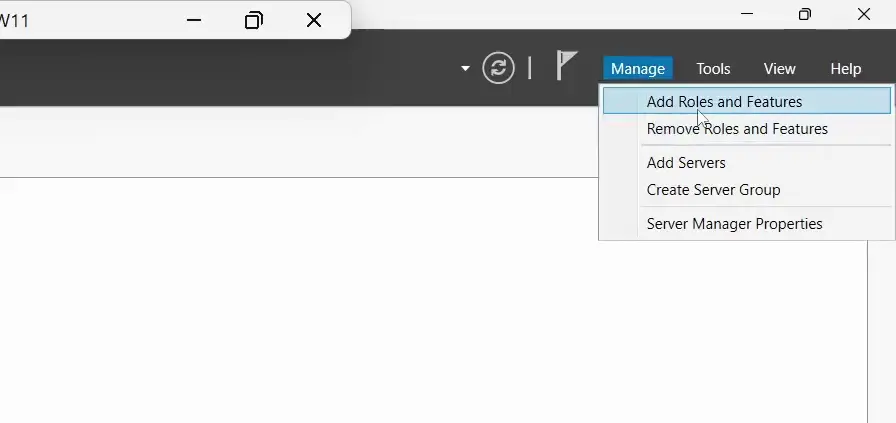
Open Server Manager. It usually opens automatically when you log in, but you can also find it by searching for "Server Manager" from the Start menu.
- Click Manage in the top right, then select Add Roles and Features to open the wizard.
- Select Role-based or feature-based installation, then click Next.
- Choose your local server from the pool (it should already be selected by default), then click Next.
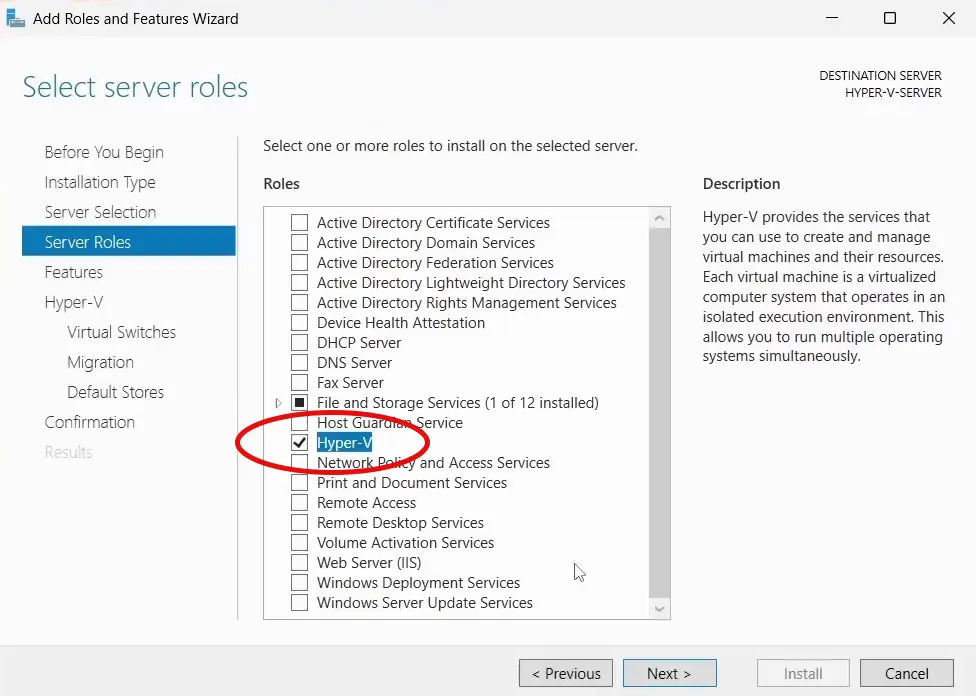
- Scroll down the list of server roles and check the box next to Hyper-V.
- When the popup appears asking to add the required features, click Add Features, then click Next.
- You don't need to select anything on the Features screen, so just click Next.
- On the Virtual Switches screen, select the network adapter you want to dedicate to Hyper-V, then click Next.
- Click Next through the Virtual Machine Migration and Default Stores screens — you don't need to change anything here.
- On the storage location screen, click Browse and select or create a folder where Hyper-V will store your virtual hard drives by default.
- On the confirmation screen, check the box for Restart the destination server automatically if required, since Windows Server needs to restart to finish enabling Hyper-V.
- Click Install and wait for the process to finish. The server will restart on its own partway through.
Verifying Hyper-V Is Enabled
- Click the Start button, type Hyper, and open Hyper-V Manager to confirm the install worked.
- Check that your server is listed by name in the left-hand panel — this confirms Hyper-V is enabled on this host.
Open Virtual Switch Manager and confirm you have one virtual switch already created, using the network adapter you selected earlier, set to External network type. This is what lets your future virtual machines connect to your physical network.
What's Next?
That's it — Hyper-V is now enabled on your Windows Server 2025 machine, and you have a virtual switch ready to go. From here, you're ready to start creating virtual machines. Check out our guide on creating a Windows 11 virtual machine in Hyper-V for the next step.