How to Install Flatpak on Ubuntu (Step-by-Step Guide)
If you're looking to install Flatpak on Ubuntu, you're in the right place. In this guide, I'll show you exactly how to install and set up Flatpak — including how to add the Flathub repository and install apps using the GUI.
While I am using Ubuntu 24.04 and 26.04 in this example, this method is universal and will work on almost any version of Ubuntu.
How to Install Flatpak on Ubuntu
To install Flatpak, you need to run three commands in the terminal, then restart your computer.
Step 1 — Install the Flatpak Package Manager
sudo apt update && sudo apt install flatpakStep 2 — Install the GNOME Software Plugin for Flatpak
sudo apt install gnome-software-plugin-flatpakThis integrates Flatpak with the GNOME Software Center, so you can install Flatpak apps using a graphical interface instead of the terminal.
Step 3 — Add the Flathub Repository
flatpak remote-add --if-not-exists flathub https://dl.flathub.org/repo/flathub.flatpakrepoFlathub is the main repository for Flatpak software — this is where your apps will be downloaded from.
Step 4 — Restart Your Computer
After running all three commands, restart your computer before installing any apps.
How to Install Flatpak Apps on Ubuntu (GUI Method)
Once your computer restarts, you're ready to install Flatpak apps.
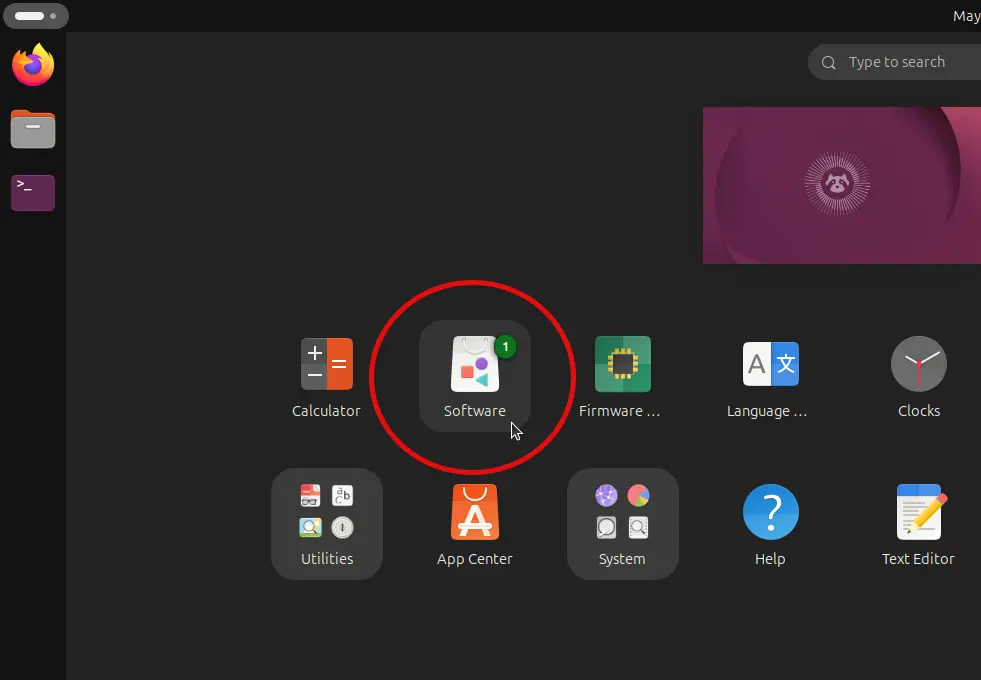
Important: You cannot use the Ubuntu App Center to install Flatpak apps. You need to use the GNOME Software app (called Software).
Here's how to install a Flatpak app:
- Open Software (GNOME Software Center)
- Search for the app you want to install
- Click on the result to open it
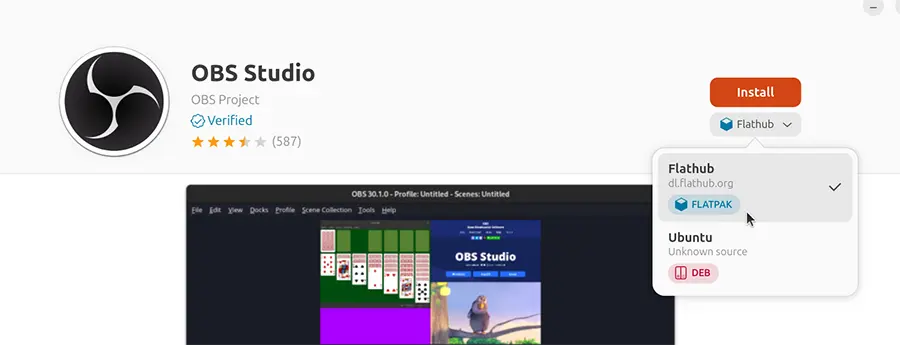
- Check the dropdown menu and make sure Flathub is selected as the source
- Click Install
Making sure Flathub is selected is important — especially if the app is available from multiple sources and you specifically want the Flatpak version.
How to Install Flatpak Apps Using the Terminal
You can also install Flatpak packages using the flatpak command in the terminal. If you want to learn how to do that, check out the video on using the Flatpak command linked below.
How to Install, Update, and Uninstall Apps on Linux Using FlatpakWhat Is Flatpak and Why Use It?
Ubuntu already comes with two package managers — APT and Snap. Flatpak is a third option, and it's worth installing because:
- Some apps are only available through Flatpak
- Flatpak often provides the latest version of software
- It works across most Linux distributions
Frequently Asked Questions
Does Flatpak work on all versions of Ubuntu? Yes, the steps in this guide work on any version of Ubuntu.
Do I need to uninstall APT or Snap to use Flatpak? No. All three package managers can coexist on the same system without any issues.
What is Flathub? Flathub is the main app store for Flatpak software. Most Flatpak apps are downloaded from there.
Can I install Flatpak apps without using the terminal? Yes — after completing the setup, you can install Flatpak apps through the GNOME Software Center without using any commands.
Summary
Here's a quick recap of the steps to install Flatpak on Ubuntu:
sudo apt update && sudo apt install flatpaksudo apt install gnome-software-plugin-flatpakflatpak remote-add --if-not-exists flathub https://dl.flathub.org/repo/flathub.flatpakrepo- Restart your computer
- Install apps via the GNOME Software center — make sure to select Flathub as the source
Found this guide helpful? Check out more Ubuntu and Linux tutorials on the RealClearComputing YouTube channel.