How to Install Visual Studio Code on Linux Mint 22 (Official Method)
If you want to install Visual Studio Code on Linux Mint 22, this guide will show you the complete process. We will cover installing VS Code using the Microsoft APT repository, adding the “Open with VS Code” option to the right-click menu in the File Manager, and updating VS Code to the latest version.
VS Code is also available via Flatpak, but the Flatpak version is not recommended. It is unofficial and may have issues. If you previously installed the Flatpak version, uninstall it before continuing.
flatpak uninstall com.visualstudio.code --delete-data
flatpak uninstall --unusedInstall VS Code using the Microsoft APT repository
Now we will install the latest official version of Visual Studio Code using the following steps.
First, we will download VS Code for Linux Mint 22. Go to code.visualstudio.com and download the Linux .deb package.
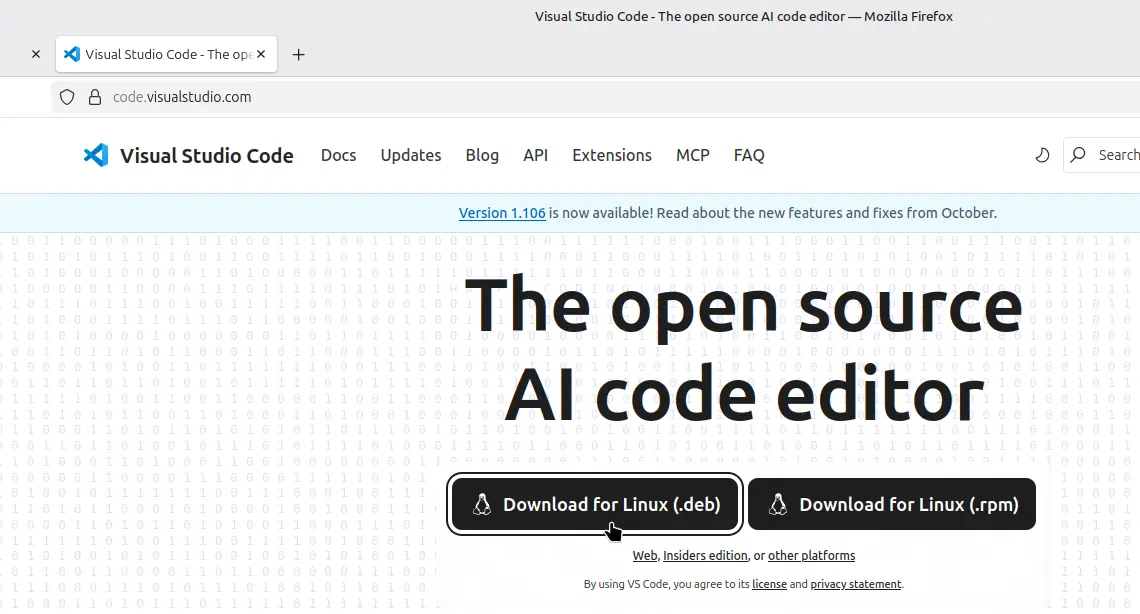
After the download is complete, open a terminal and navigate to the folder where the package was saved:
cd ~/DownloadsThen, install the package using apt install:
sudo apt install ./<package-name>.debUsing ./ before the file name installs the package locally on your Linux Mint system.
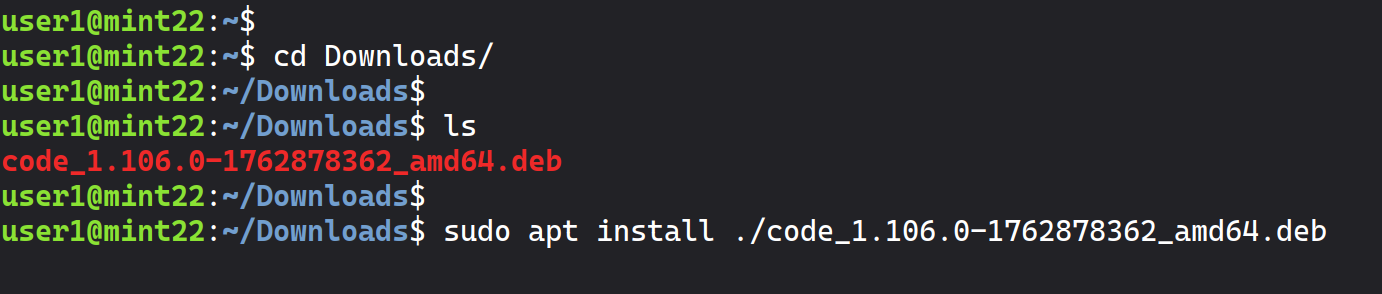
You may see a message saying "download is performed unsandboxed as root." This is not an error and can be safely ignored.
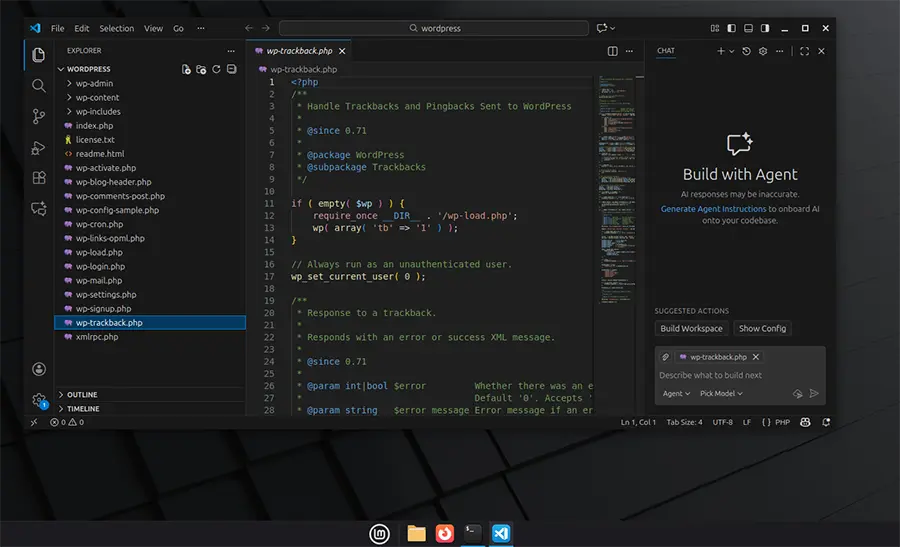
That's it! Visual Studio Code is now installed, and you can open it from the Programming menu.
Add “Open with VS Code” to Right-Click Menu
To make VS Code more accessible, you can add the “Open with VS Code” option to the File Manager’s right-click menu.
Follow the link below to configure the File Manager with the “Open with VS Code” right-click menu option.
Add “Open with VS Code” to Linux Mint Right-Click MenuUpdate VS Code to the Latest Version
If VS Code does not update automatically, you can manually upgrade it with this command:
sudo apt install --only-upgrade codeAlternatively, download the latest .deb package from Visual Studio Code and install it using the same apt install ./.deb command to get the newest version.
Conclusion
Installing Visual Studio Code on Linux Mint 22 is quick and straightforward when you use the official Microsoft version. With the “Open with VS Code” shortcut in your File Manager and easy update options, you can start coding efficiently right away.