How to Restore a Bootable USB Drive to Normal in Windows
If you have a USB drive that was previously used as a Windows or Linux installation medium, it may not show its full capacity or appear correctly in File Explorer. To fix this, you need to make the bootable USB drive non-bootable again.
What You Need
The easiest way to do this in Windows is by using Rufus. While typically used to create bootable drives, it is also an excellent tool for restoring them to their original state.
You can download Rufus from the official website at rufus.ie or install it directly from the Microsoft Store.
Steps to Restore a Bootable USB in Windows Using Rufus
- Open Rufus.
- From the Device drop-down menu, select your pen drive.
- Under Boot selection, select Non bootable.
- For the Partition scheme, choose MBR.
- Name your pen drive under Volume label.
- For File system, select FAT32 or NTFS.
- Use NTFS if you plan to copy files larger than 4 GB.
- Click Start and then OK.
Once complete, your bootable USB will be restored to a normal USB drive.
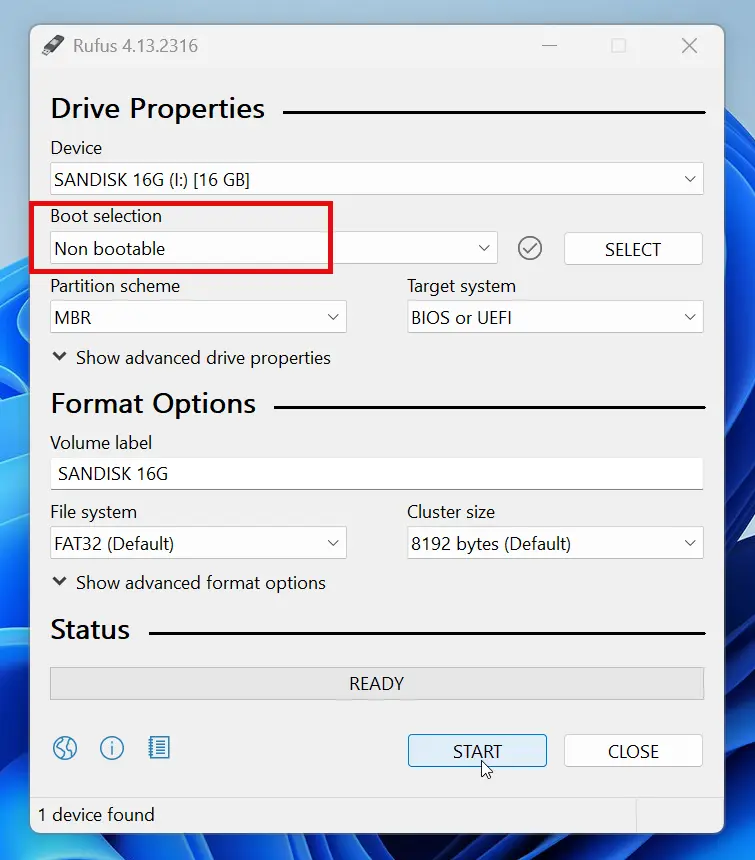
Using Rufus, you can easily make a bootable USB non-bootable in Windows and restore it to its original state. This process is quick, safe, and ensures your USB drive works like a regular USB again.