How to Add “Open with VS Code” to Linux Mint Right-Click Menu
If you use Linux Mint and Visual Studio Code, you may notice that the Open with VS Code option is missing from the Nemo file manager right-click menu by default. In this tutorial, I will show you how to add Open in VS Code to Linux Mint Nemo so you can quickly open any folder in Visual Studio Code.
Why Add “Open in VS Code” Shortcut in Nemo
The Nemo file manager allows custom actions for right-click menus. Adding an Open in VS Code shortcut makes it faster to open your project directories without navigating through the terminal.
Step 1: Create the Nemo Actions Folder
What you need to do first is make sure the actions folder exists in your home directory:
~/.local/share/nemo/actionsThis folder usually exists by default. If not, create it using the command:
mkdir -p ~/.local/share/nemo/actionsStep 2: Create the Nemo Action File
Next, create a new file named open-with-vscode.nemo_action in the ~/.local/share/nemo/actions folder:
open-with-vscode.nemo_actionYou can create and open the file at the same time using the VS Code command-line launcher:
code ~/.local/share/nemo/actions/open-with-vscode.nemo_actionThis opens the file directly in Visual Studio Code, ready for editing.
Step 3: Add the Action Code
In the file, paste the following code:
[Nemo Action]
Name=Open with VS Code
Comment=Open in Visual Studio Code
Exec=code "%F"
Icon-Name=visual-studio-code
Selection=Any
Extensions=any;
If you installed VS Code using Flatpak, use the following code block instead:
[Nemo Action]
Name=Open with VS Code
Comment=Open with Visual Studio Code
Exec=flatpak run com.visualstudio.code "%F"
Icon-Name=visual-studio-code
Selection=Any
Extensions=any;
Step 4: Restart Nemo File Manager
To make the new Open in VS Code action appear, restart Nemo:
nemo -qAlternatively, you can restart your computer, but restarting Nemo alone is usually enough.
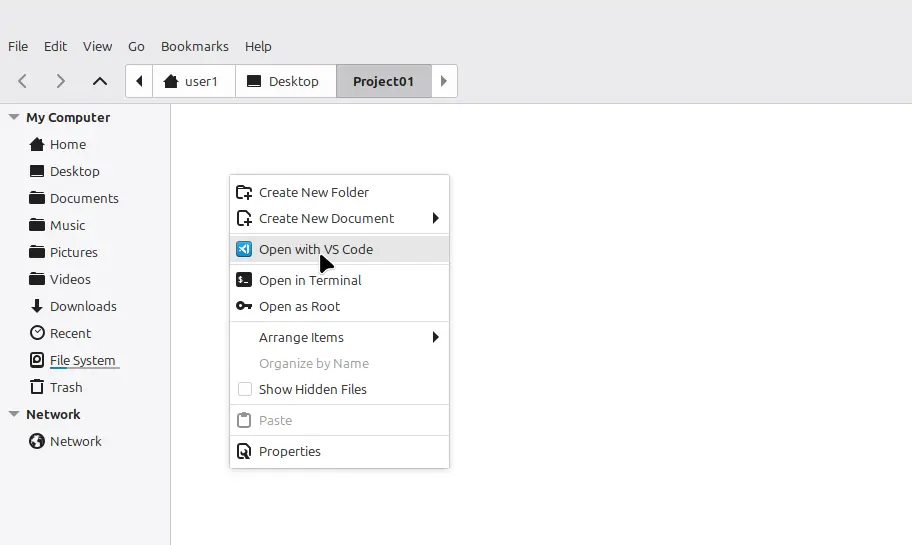
Now, open Nemo, navigate to any folder, and right-click. You should see "Open with VS Code" in the context menu. Clicking it will open the current folder in Visual Studio Code, saving you time and effort.