How to Install TeamViewer on Linux Mint 22 / 22.3 (Step-by-Step)
In this guide, we will look at how to install TeamViewer on Linux Mint 22. For this setup, we are using two computers: one running Linux Mint 22 (or 22.3) and the other running Windows 11. We will walk through the installation on Linux and demonstrate how to access it remotely from a Windows machine.
Step 1: Download the TeamViewer .deb Package
First, you need to download the correct installer for Linux Mint. Go to TeamViewer Linux Download page and click Free Download. Make sure to download the TeamViewer Linux package for Ubuntu / Debian.
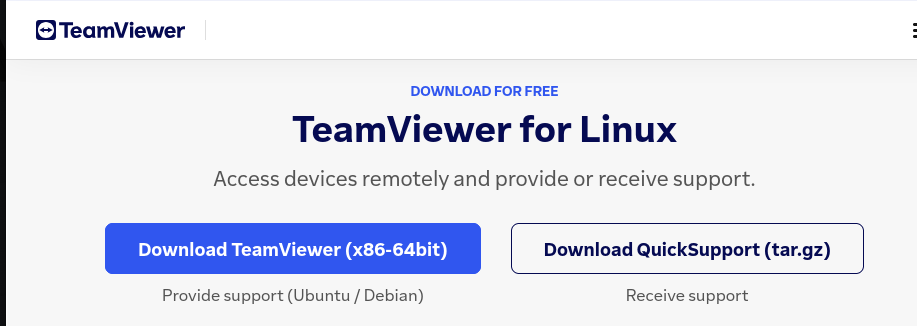
This .deb file is fully compatible with Linux Mint 22 and its point releases (22.1, 22.2, 22.3).
Step 2: Install TeamViewer via Terminal
Once the download is finished, open the Terminal and cd into your Downloads folder.
cd DownloadsThen install TeamViewer using the apt install command. Ensure you include ./ before the filename so the system knows it is a local file.
sudo apt install ./teamviewer_amd64.deb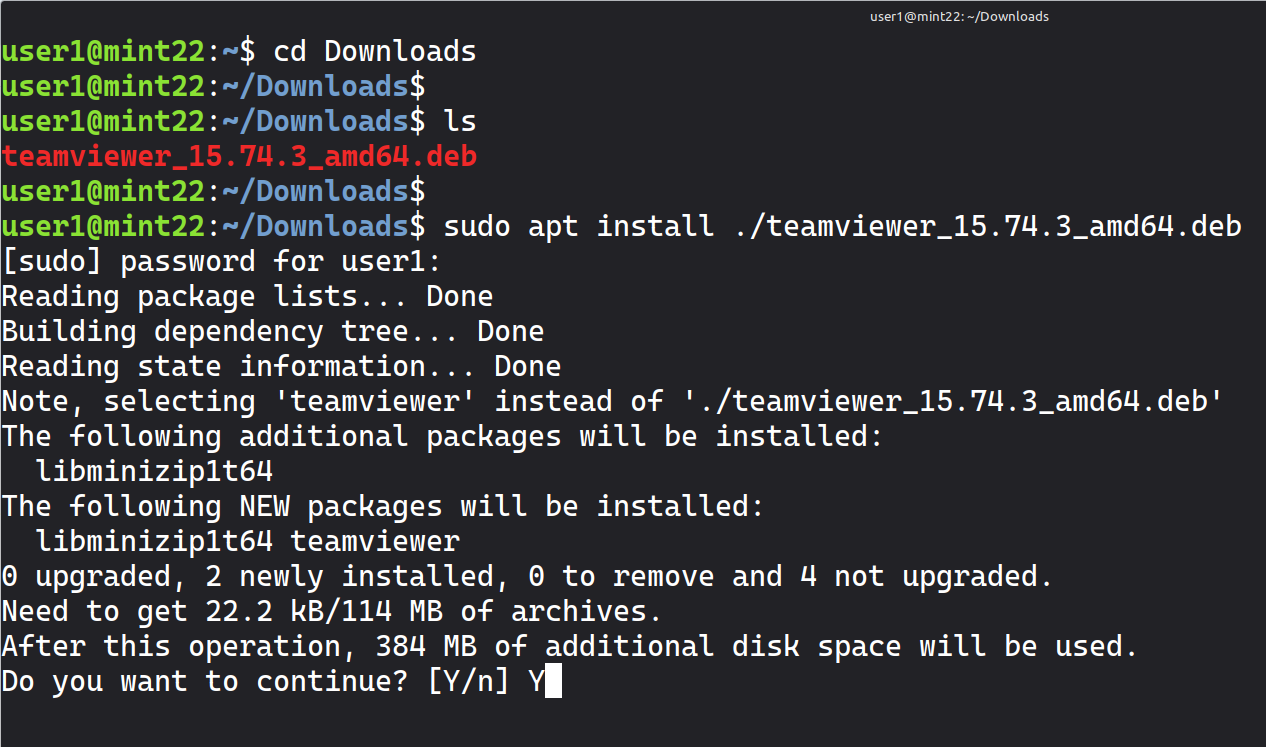
Note on Warnings: You may see a minor warning at the end of the process. You can safely ignore this; it is not an error message.
You can now close the terminal and launch TeamViewer from your application menu under the Internet.
Step 3: Fixing the "Session Code Expired" Error
When you first open TeamViewer, you will see your ID and Password. However, connecting from Windows might trigger an error: "Session code expired."
To fix this, you must sign into a TeamViewer account on both the Linux Mint and Windows computers. This is currently the only way to bypass this error and establish a stable connection.
Remote Desktop from Windows 11 to Linux Mint 22
After signing in on both Linux Mint and Windows 11, copy the Linux Mint TeamViewer ID, paste it into the TeamViewer client on Windows, and connect using the password.
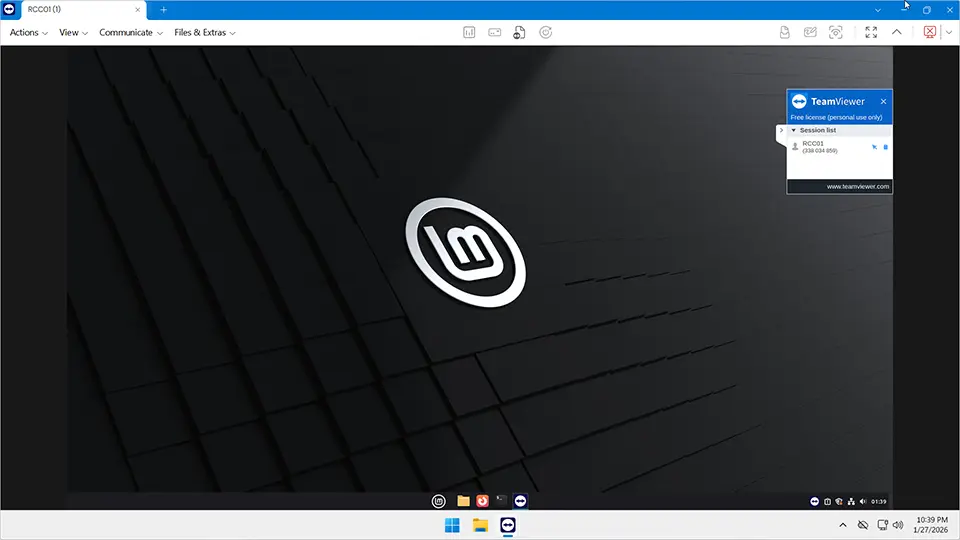
You should now be able to access the Linux Mint desktop remotely from Windows 11.
Remote Desktop from Linux Mint to Windows
TeamViewer also works the other way around. Copy the TeamViewer ID from the Windows machine, paste it into TeamViewer on Linux Mint, and connect.
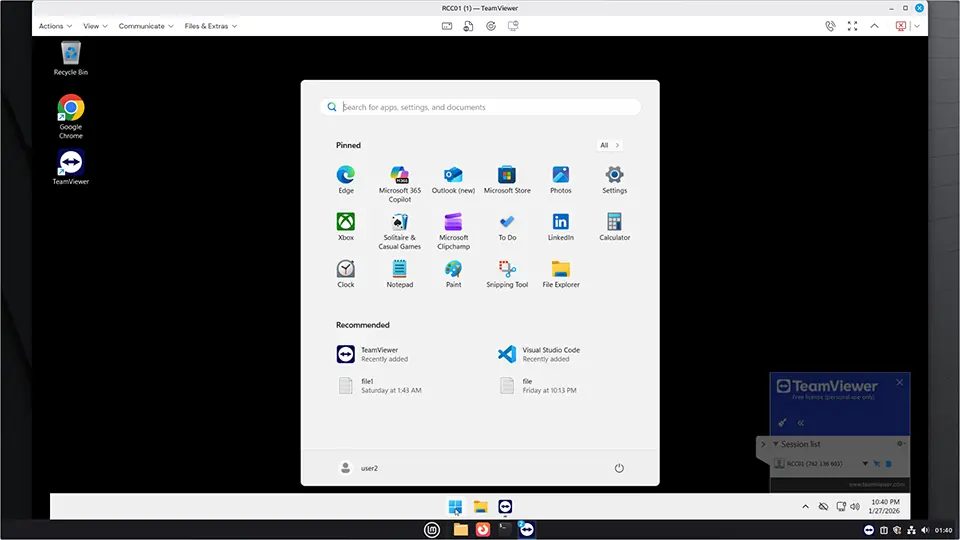
As you can see, the remote desktop works in both directions using TeamViewer.
Best TeamViewer Alternative for Linux Mint
If you prefer not to create a TeamViewer account, you will need a different remote desktop solution. A good alternative is AnyDesk. It is lightweight and works well on Linux Mint.
Links:
TeamViewer works well on Linux Mint 22, but it requires signing in with an account for remote access. If that doesn’t work for you, AnyDesk is a solid alternative.