How to Enable Desktop Icons on Debian 13 GNOME (Trixie)
In this guide, we will see how to enable desktop icons on the Debian 13 GNOME desktop. By default, the GNOME desktop environment does not support icons. To fix this, we need to install a few specific packages and the GNOME desktop extension.
Step 1: Install Required Packages
Before installing the extension, we have to install a couple of packages. One is the GNOME Extension Manager to manage our extensions. We also need to install the gir1 package (specifically gir1.2) for our desktop icons extension.
Update your package list:
apt updateInstall gir1 packages: We will install the gir1 package. There is a newer version called 4.0, and if you are not sure which version you are going to need for our desktop icons package, you can install both 3.0 and 4.0.:
apt install gir1.2-gnomedesktop-3.0 gir1.2-gnomedesktop-4.0Install GNOME Extensions App: After that, we need to install the gnome-shell-extension-prefs package.
apt install gnome-shell-extension-prefsStep 2: Install the Desktop Icons Extension
Now we have our Extensions Manager, but right now we don’t have any desktop icons extensions.
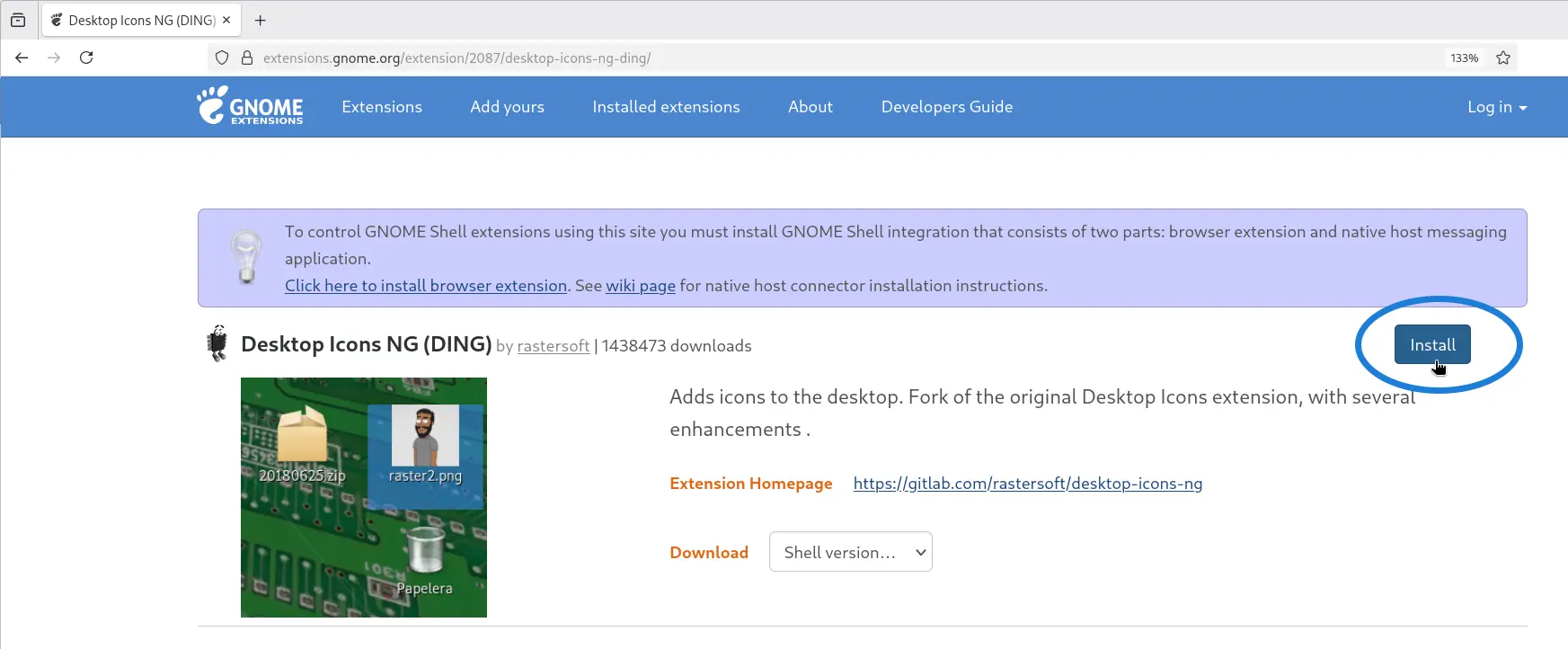
- Open your web browser and go to Desktop Icons NG (DING).
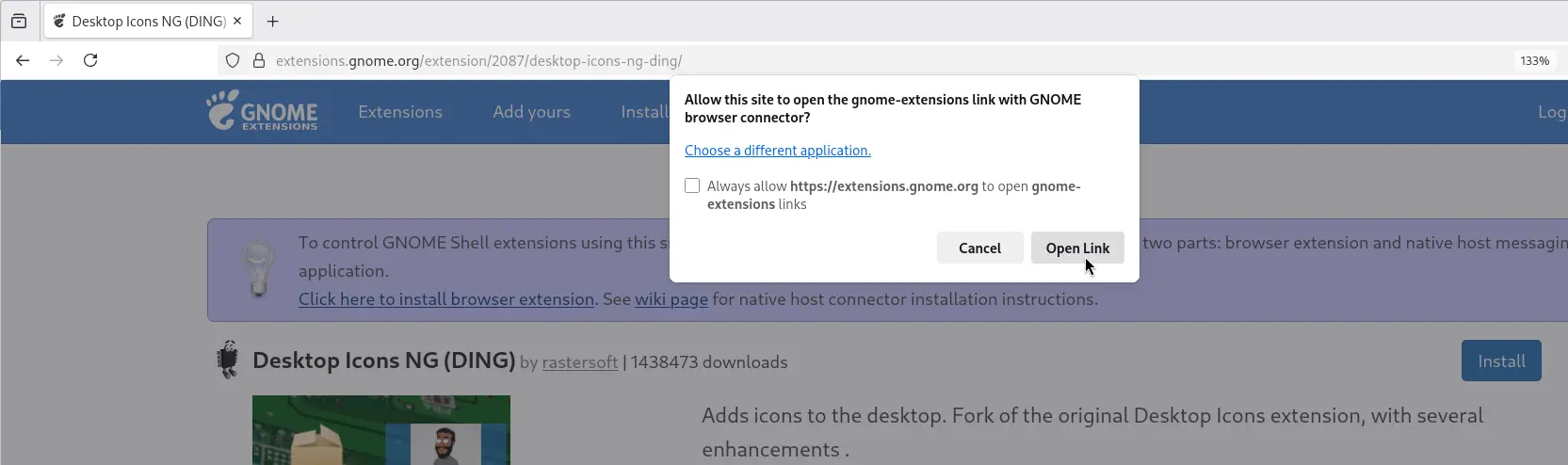
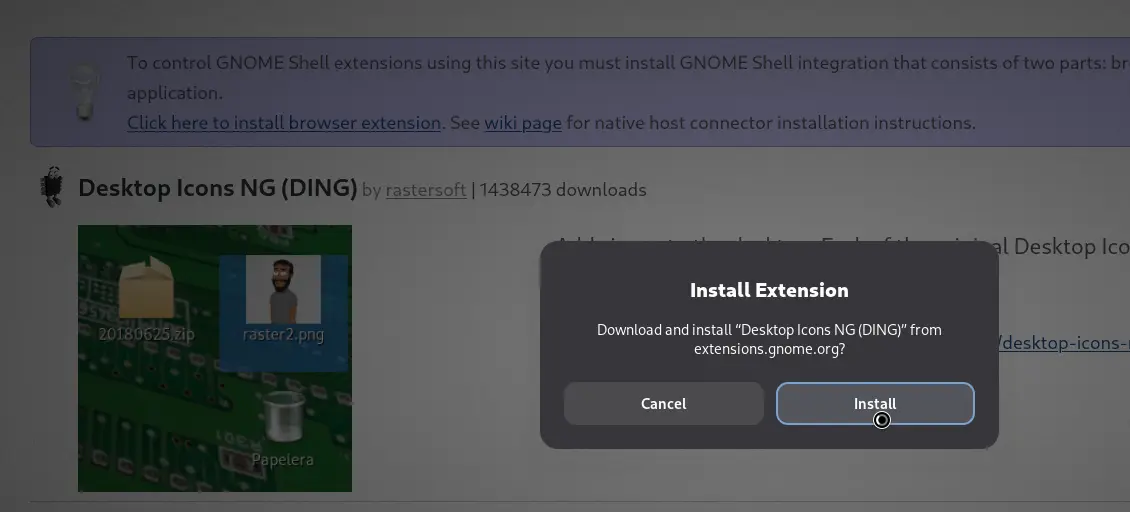
- In the extension page, click the Install button, then click Open Link, and select Install.
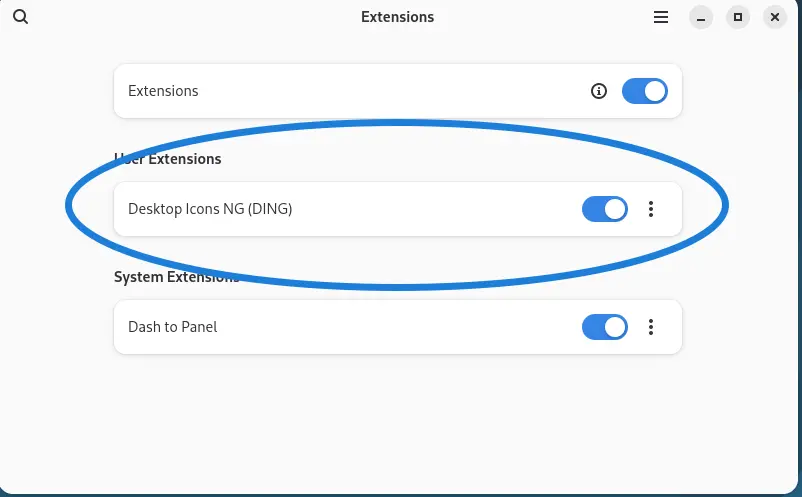
If you go to your Extensions Manager, you should now see the Desktop Icons NG (DING) extension. It is enabled by default as well.
Step 3: Customize Desktop Settings
Now we have desktop icons and customized settings. To change your settings, you can go to settings from the Extensions Manager, or you can right-click the desktop and select Desktop Icons Settings.
From here, you can choose which icons you want to show. For example, you can turn off the Trash icon by turning off the switch.
Step 4: Enable the "New Document" Right-Click Option
One thing missing here is that when you right-click the desktop, you don't have the option to create a new text file. We will configure that now.
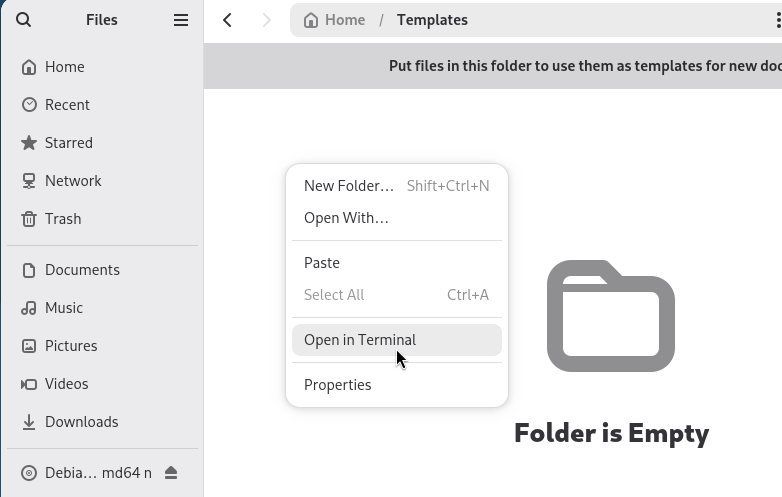
- Open the File Manager and go to the Templates folder in your Home directory.
- Then right-click and select "Open in Terminal".
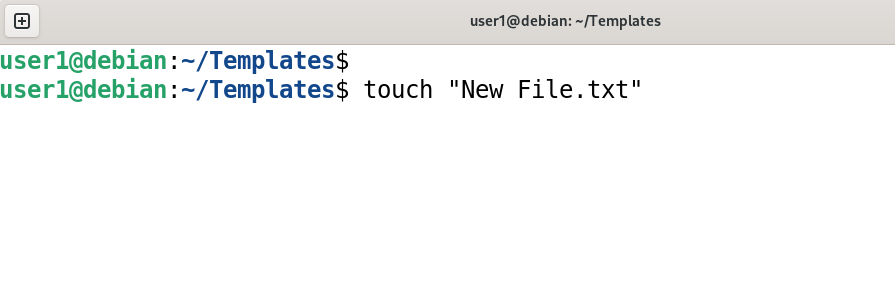
- Run the
touchcommand to create a new template:touch "New File.txt"
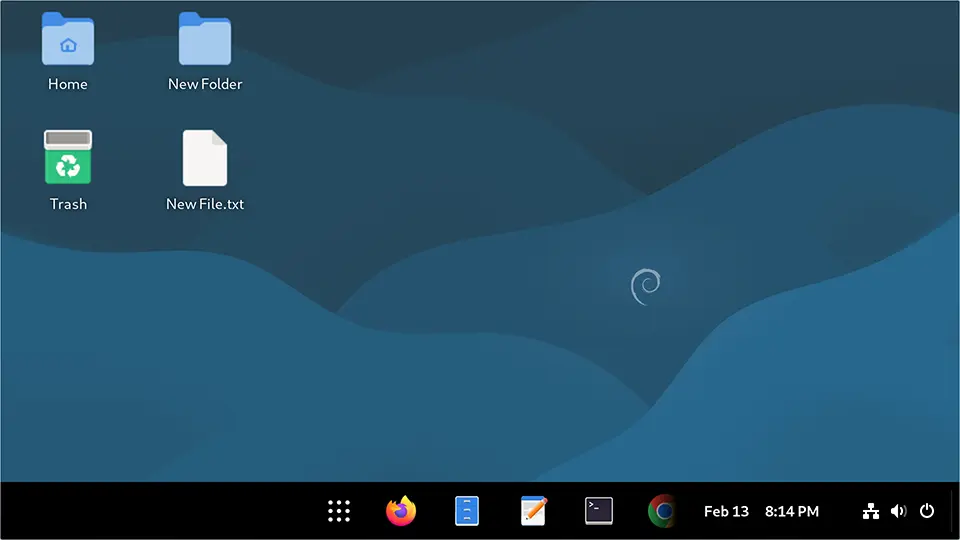
Now, if we go to your desktop and right-click, you should have the New Document option to create a new text file. This option will also be available now from our File Manager.
Conclusion
That’s how we enable desktop icons in the Debian GNOME desktop. In the next guides, we will look at: