How to Enable Minimize and Maximize Buttons in Debian 13 GNOME Desktop
By default, the Debian 13 GNOME desktop does not show minimize and maximize buttons on application windows. But the good news is, you can easily enable them.
In this guide, we will look at how to enable minimize and maximize buttons in Debian 13 GNOME desktop.
Step 1: Install the GNOME Tweaks Package
The first thing we need to do is install a package called GNOME Tweaks. You can perform these steps by logging in as the root user or by using sudo privileges.
- Update the Package List: First, we will update the package list with the update command:
apt update - Install GNOME Tweaks: Next run the this command to install gnome-tweak package:
apt install gnome-tweaks
Step 2: Configure Window Controls in GNOME
After the installation is complete, we need to activate the buttons within the application settings.
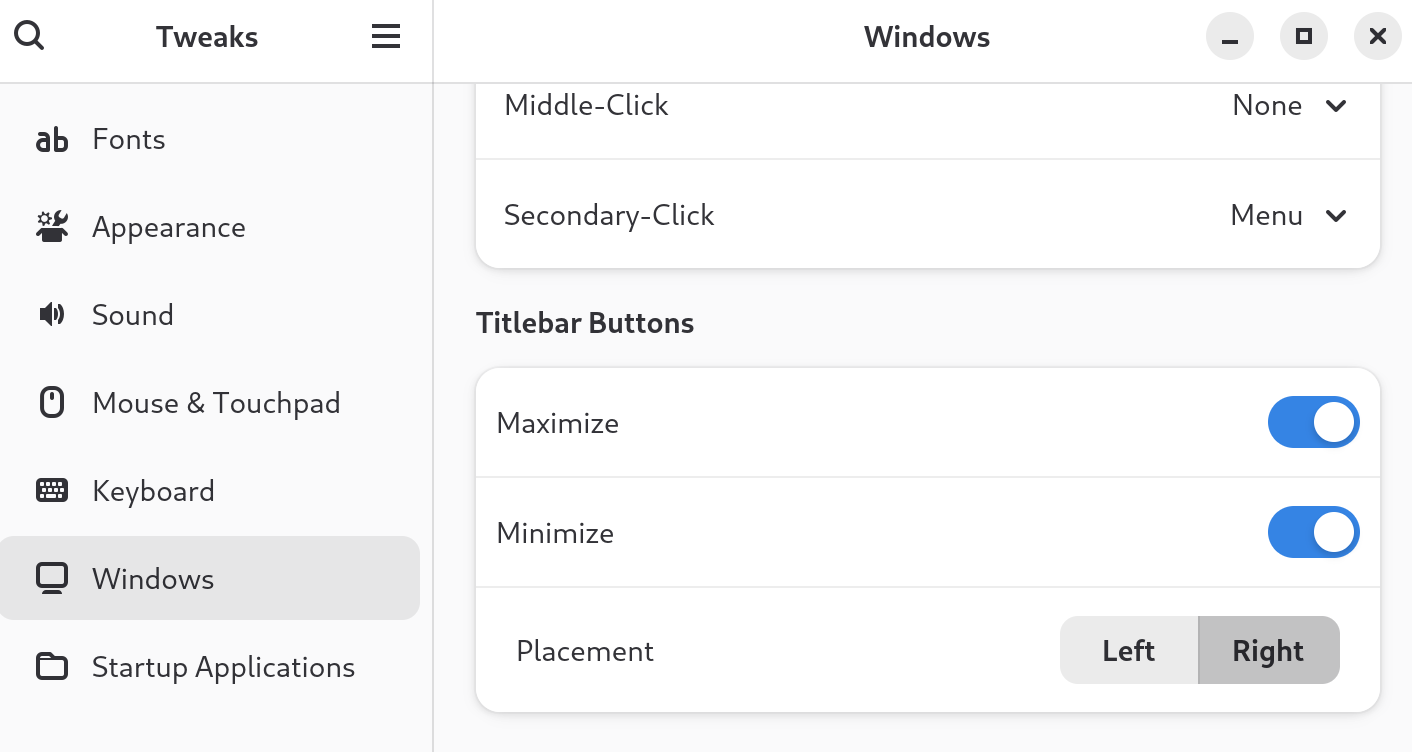
- Open your Application Menu and search for Tweaks.
- Open the application and go to the Windows section (found in the sidebar).
- Under Window Titlebars, enable the Minimize and Maximize switches.
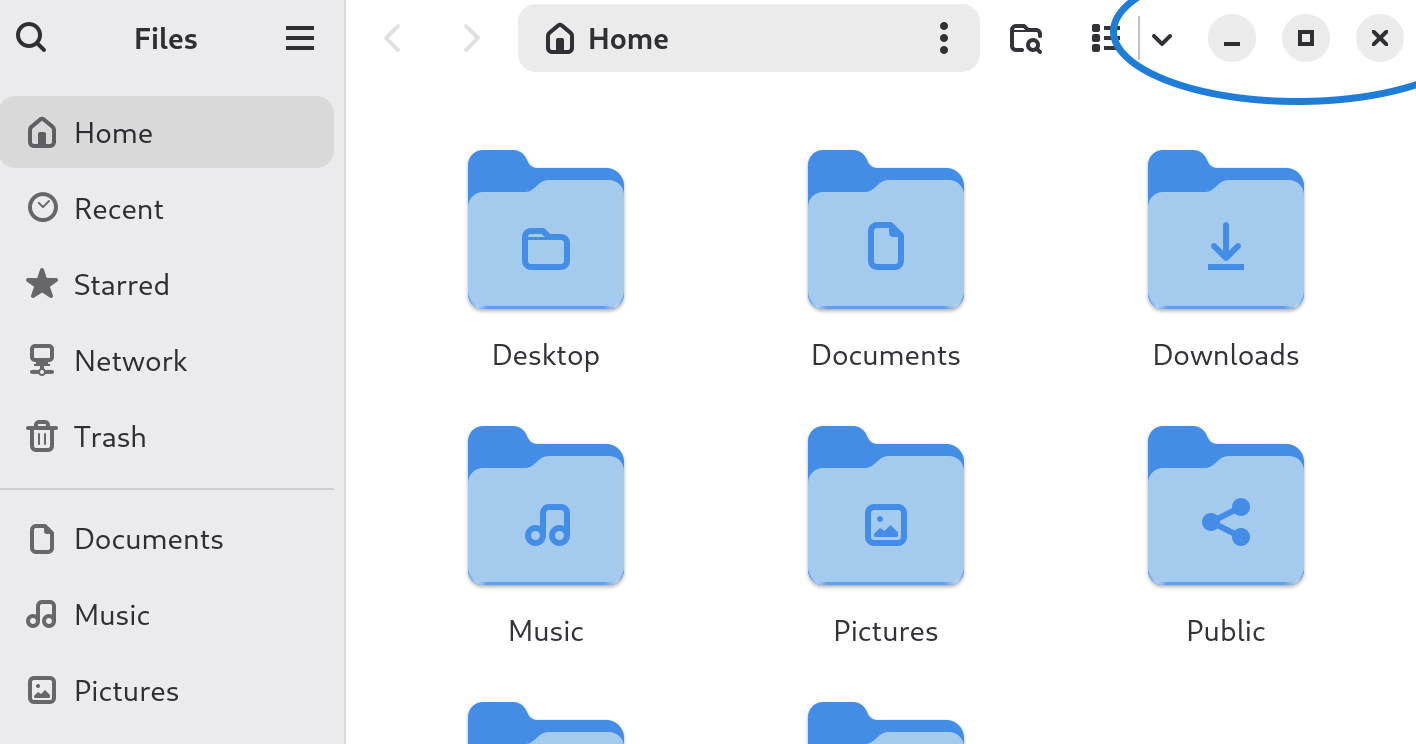
Enabling these switches will add the minimize and maximize buttons to our windows now.
Conclusion
That’s how we enable minimize and maximize buttons in the GNOME desktop on Debian 13. This simple adjustment makes navigating windows much easier. In the next two guides, we will look at how to add a taskbar and how to enable desktop icons in Debian.