How to Update Google Chrome on Linux Mint 22
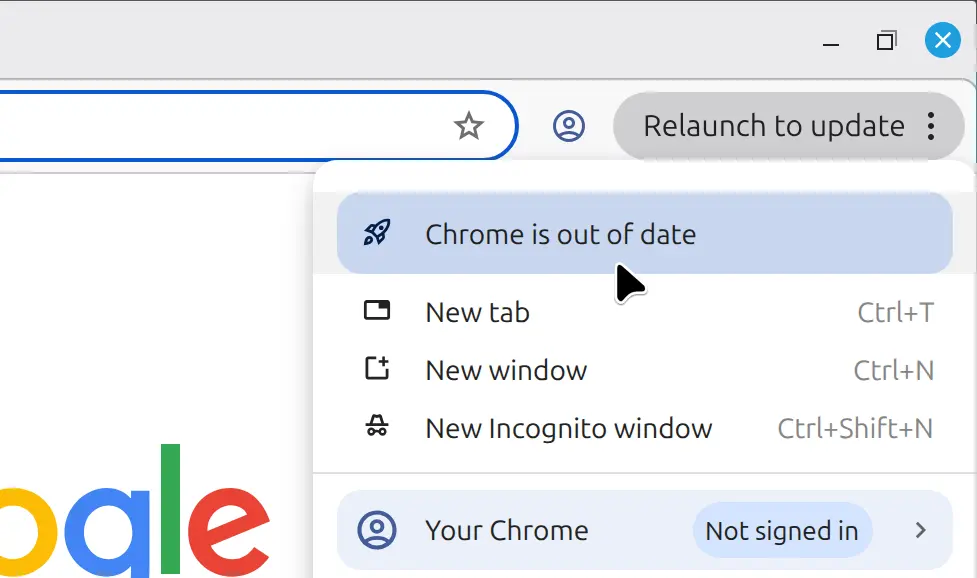
If you are seeing a "Google Chrome is out of date" message or the "Cannot update Chrome" notification on Linux Mint 22, the solution is a simple package refresh. In this guide, you will learn the exact terminal commands to upgrade Chrome to the latest version and how to verify the update.
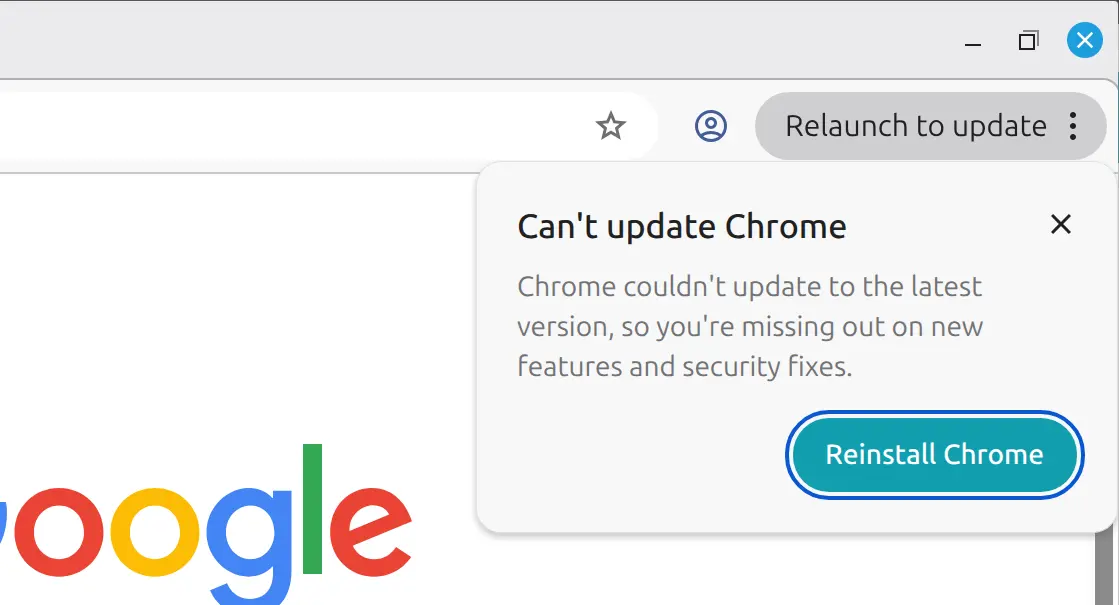
The Quick Fix: Update Chrome via Terminal
The fastest way to fix an out-of-date browser in Linux Mint 22 is using the apt package manager. Follow these steps,
Update Your Package List
Before upgrading, you must refresh your system's software repository list. Run the following command:
sudo apt updateUpgrade Google Chrome
To update Chrome specifically without triggering a full system upgrade, run:
sudo apt install --only-upgrade google-chrome-stableOnce the process finishes, your Chrome browser will be updated to the latest stable version.
Pro Tip: Using the "History" Command
Also, when you want to upgrade Chrome again later, if you cannot remember the command, you can simply run:
historyThis command will show your command history, and you can find the Chrome upgrade command there.
Summary Table: Chrome Update Commands
- Refresh Software List:
sudo apt update - Upgrade Google Chrome:
sudo apt install --only-upgrade google-chrome-stable - Check Command History:
history - Verify Version:
google-chrome-stable --version