How to Disable Tab History in Notepad (Windows 11)
The tabbed interface in the Windows 11 Notepad is a useful feature for many. It allows you to return to unsaved documents after closing the app, letting you pick up exactly where you left off. However, this can lead to a cluttered workspace with too many open tabs, similar to a web browser.
If you prefer a clean start every time you open the app, follow these steps to disable Notepad tab history.
How to Stop Notepad from Reopening Previous Tabs
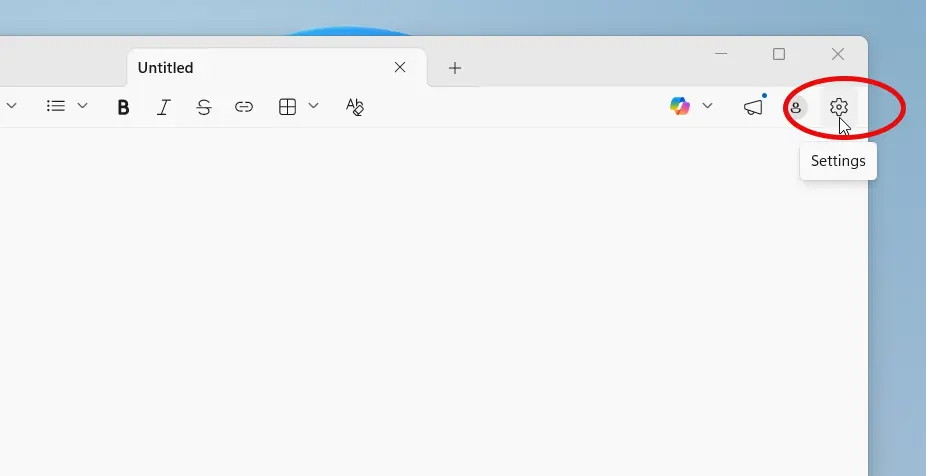
- Open Notepad Settings: Launch Notepad and click the gear icon in the top-right corner.
- Locate Startup Settings: Find the section labeled "When Notepad starts."
- Change the Default Behavior: This is usually set to "Open content from a previous session." To disable history, select: "Start a new session and discard unsaved changes."
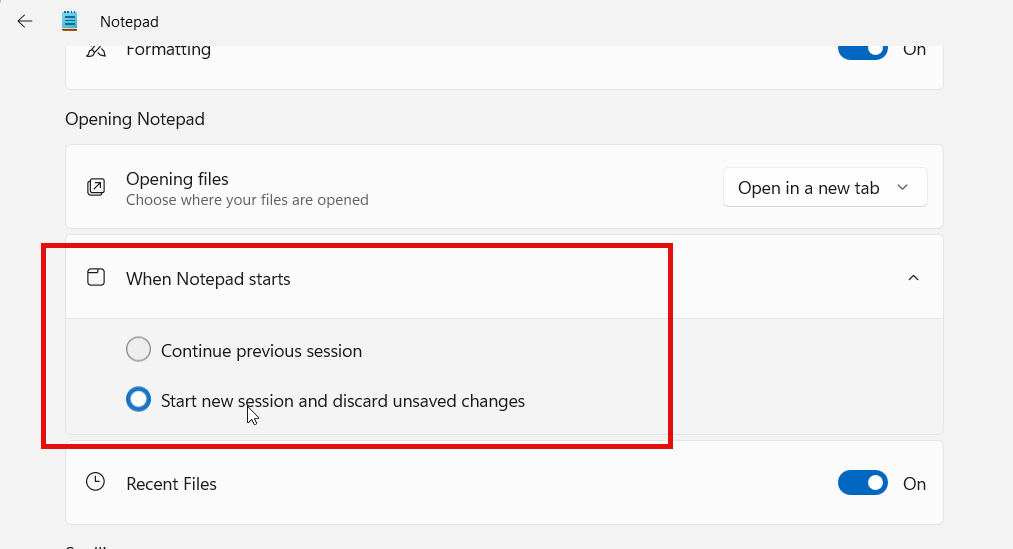
Once selected, Notepad will open a fresh, blank document every time you launch the application.
Optional: Disable Copilot in Notepad
To further simplify the interface and remove AI distractions:
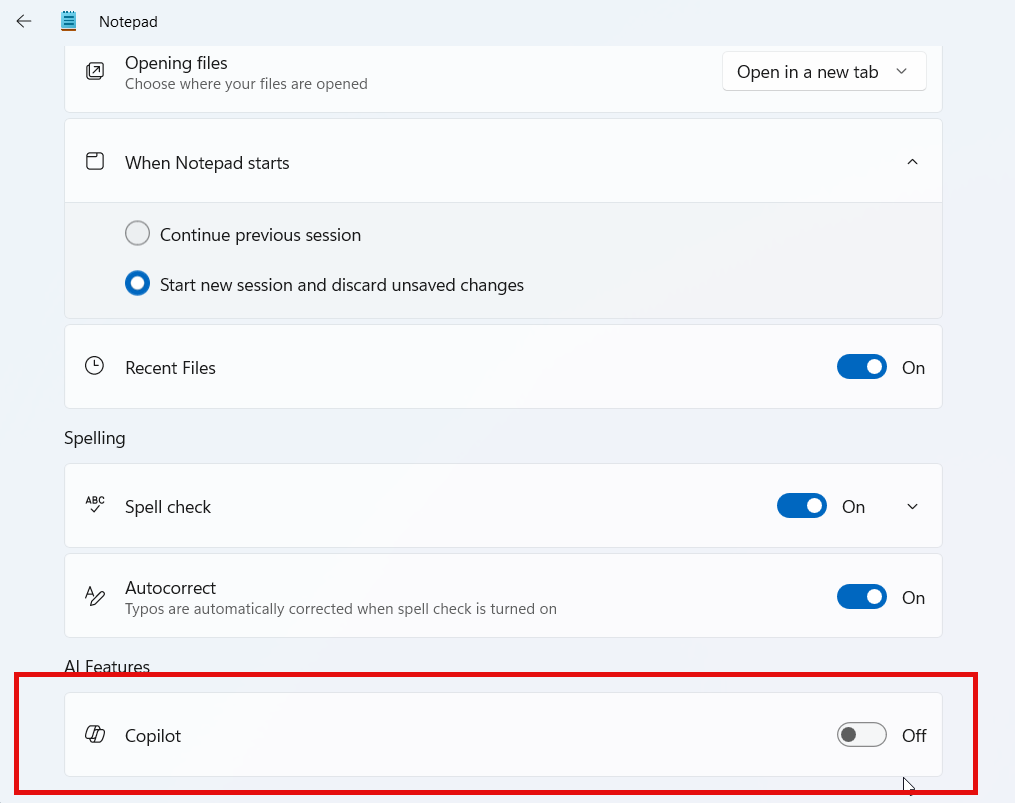
- In the Settings menu, find the Copilot toggle.
- Switch off the toggle to remove the Copilot button from the Notepad interface.
By following these steps, you can maintain a minimal and distraction-free experience in Notepad for Windows 11.