How to Install Docker on Ubuntu 26.04 (Server & Desktop)
In this guide, we will look at how to install Docker on Ubuntu 26. This guide works on both Ubuntu Server and Ubuntu Desktop environments. First, we will install the Docker Engine, then we will configure the Docker command to run without sudo, and finally, we will run a test container to test our installation.
Prerequisites
The Docker installation script is downloaded using curl. If curl is not installed, install it first:
sudo apt update
sudo apt install cur
Install Docker
To install Docker, we will run three commands. The first command will uninstall if there's any previous version of Docker on your system. The second command is to download the official installation script from docker.com, and then we run the third command to execute the script and install Docker.
Uninstall Previous Docker Version – If you have a previous version of Docker installed, run this command to remove it first:
sudo apt remove $(dpkg --get-selections docker.io docker-compose docker-compose-v2 docker-doc podman-docker containerd runc | cut -f1)Download the Docker Installation Script – We will use curl to download the installation script from docker.com:
curl -fsSL https://get.docker.com -o get-docker.shRun the Script to Install Docker – Now run the script using the sh command:
sudo sh get-docker.shVerify Docker Version and Service Status
Once the installation is done, run the docker version command to check the installed version:
docker versionAlso check the status of the Docker service:
sudo systemctl status dockerIn the output, you should see two things:
- enabled — means Docker will start automatically when the system reboots
- active (running) — means Docker is currently running
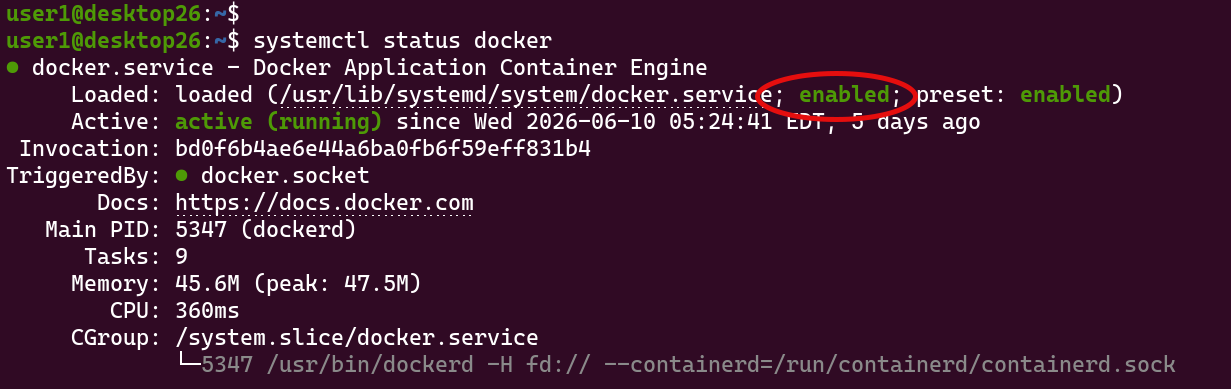
If the service is disabled, enable it using:
sudo systemctl enable dockerYou can also start and stop the Docker service manually:
sudo systemctl start docker
sudo systemctl stop docker
sudo systemctl restart docker
Configure Docker to Run Without sudo
The next thing we're going to do is configure the Docker command to run without sudo. Right now, if you try to use Docker as a standard user, you have to run the Docker command with sudo, otherwise, we will get a permission denied error.
What you need to do is add your user to the docker group. Any member of the docker group can run Docker commands without sudo.
You can add your user to the docker group using the gpasswd command (replace username with your actual username):
sudo gpasswd -a username dockerAfter that, restart your computer.
After restarting, run the groups command to confirm. You should see docker in the list. That means your user is now part of the docker group and can run Docker commands without sudo.
Run a Test Container
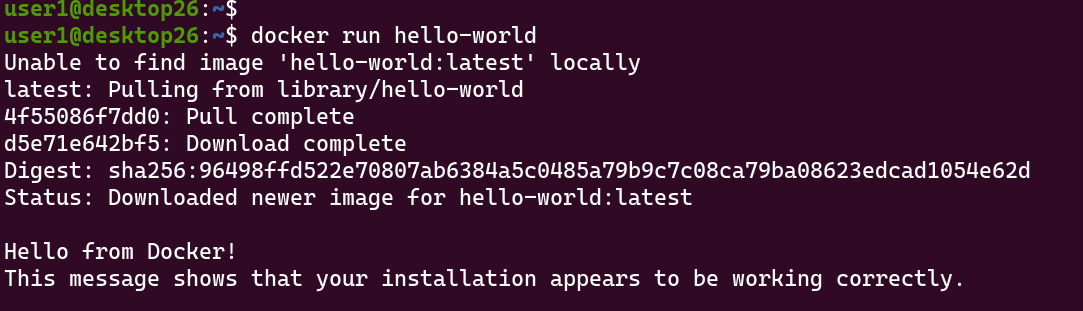
Let's run a test container to make sure everything is working. Run the hello-world container:
docker run hello-worldIf you see the message "Hello from Docker!", your installation is working properly and you are ready to run containers.
Conclusion
You have successfully installed Docker on Ubuntu 26.04 LTS. This procedure works on both Ubuntu Server 26.04 and Ubuntu Desktop 26.04.
If you want to learn more about the docker run command, check out our Docker Run guide.