How to Add a Taskbar to Debian 13 GNOME Desktop (Easy Guide)
If you are switching to Debian 13 "Trixie", you might find the default GNOME desktop a bit minimal. In this guide, we will look at how to add a taskbar to our Debian 13 GNOME desktop to improve your workflow.
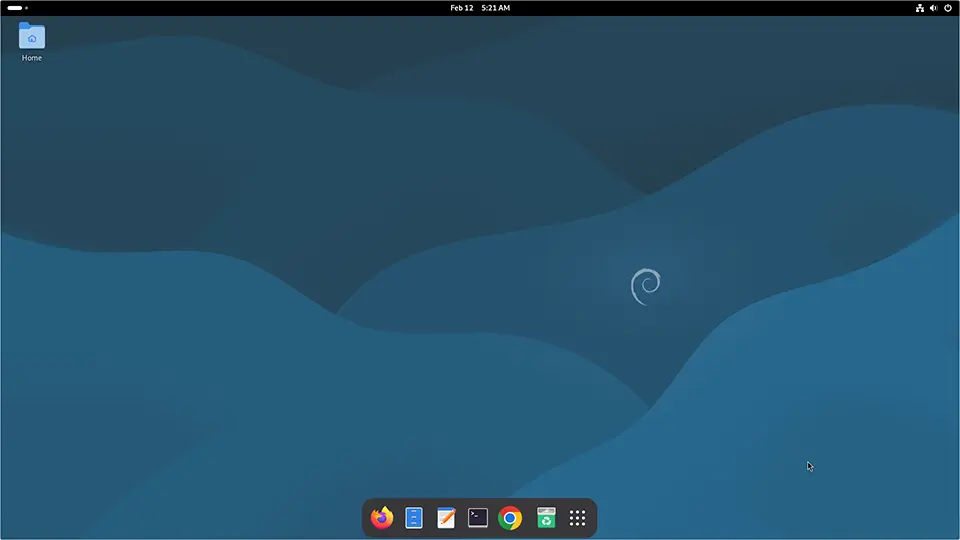
There are two types of taskbars available: Dash to Panel (similar to the Windows taskbar) and Dash to Dock (similar to the Apple macOS dock). We will look at both options in this tutorial.
Prerequisites: Install GNOME Extension Manager
Before installing any extensions, we have to install a package called GNOME Extensions to manage our desktop tweaks. The package name is gnome-shell-extension-prefs.
Open a terminal and log in as root using the su command:
su -Update your package list:
apt updateInstall the package using:
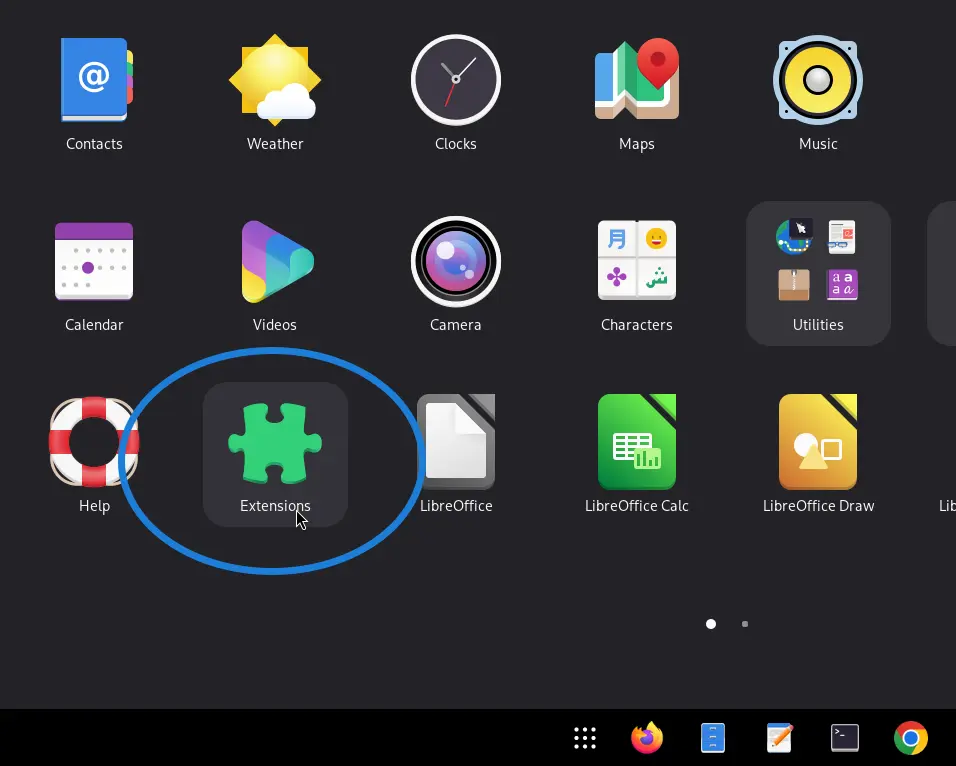
apt install gnome-shell-extension-prefsOnce installed, you can find the Extensions manager in your application menu.
Option 1: Windows-Style Taskbar (Dash to Panel)
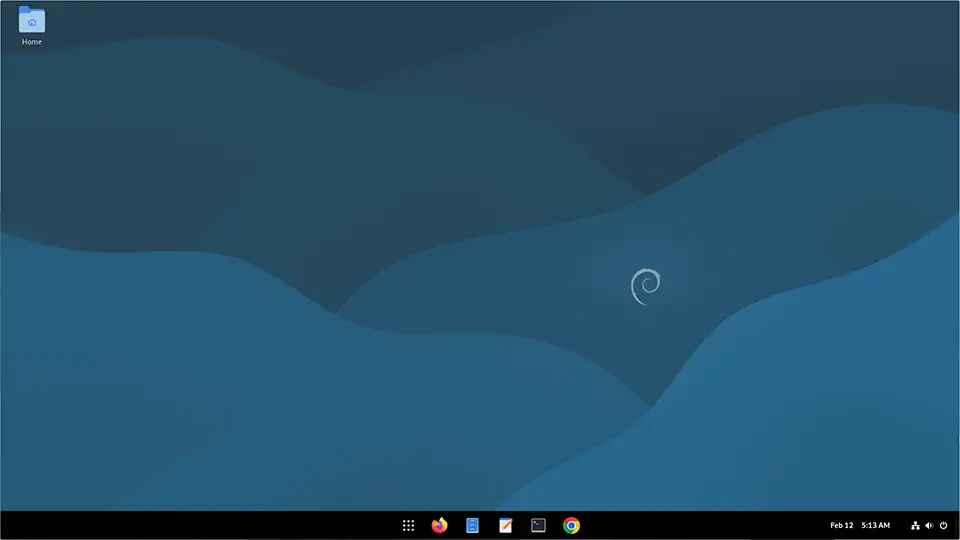
If you prefer a classic bottom bar, we will install the extension called Dash to Panel.
How to Install Dash to Panel on Debian 13:
- Install Dash to Panel using the command:
apt install gnome-shell-extension-dash-to-panel - Restart your computer so the Extensions manager recognizes the new extension.
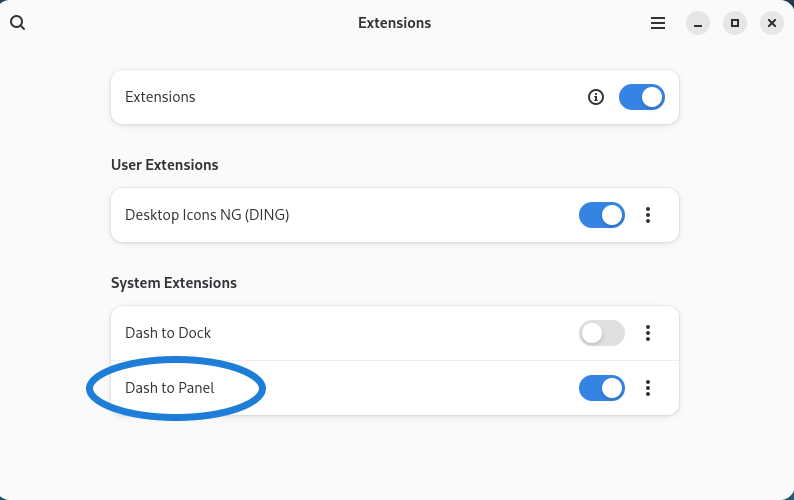
- After the restart, open the Extensions manager and toggle Dash to Panel on.
Customization Tips:
You can right-click the taskbar and select Dash to Panel Settings to customize the look:
- Center Icons: Change "Show application buttons" to the center.
- Taskbar Thickness: Under the Panel screen position, you can adjust the thickness of the taskbar.
- Margins and Paddings: Under the Style tab, you can adjust the height, padding, and margin.
Option 2: Mac-Style Dock (Dash to Dock)
Now let's see how to install a taskbar similar to Apple macOS, which is called Dash to Dock.
How to Install Dash to Dock on Debian 13:
- Login as the root user in your terminal.
- Install the package:
apt install gnome-shell-extension-dashtodock - Restart your computer.
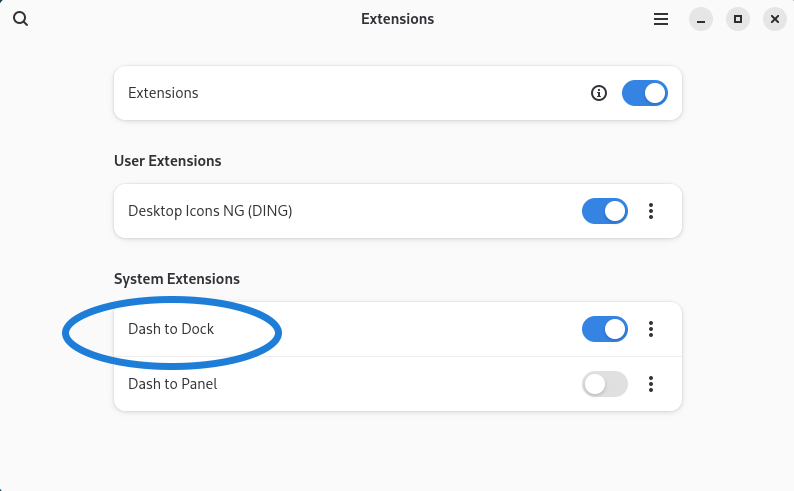
- Open the Extensions manager and enable Dash to Dock.
Troubleshooting Auto-Hide:
If the auto-hide setting doesn't work properly on your computer, follow these steps:
- Go to Settings for Dash to Dock.
- In Intelligent auto-hide, click the gear (settings) button.
- Uncheck the box "Push to show".
- With "Push to show" unchecked, you do not need to apply extra mouse pressure to show the dock when a window is open.
Conclusion
That is how we add a taskbar to the GNOME desktop in Debian 13, using either Dash to Panel or Dash to Dock. Both options make the Debian desktop much more user-friendly.