How to Reset a Bootable USB Drive on Linux (GParted)
On Linux distributions (such as Ubuntu, Fedora, or Debian), the most reliable way to restore a bootable USB drive to a normal state is by using GParted. This tool allows you to wipe existing partitions and create a new partition table.
What You Need
Before restoring your USB drive in Linux, you need to have GParted installed. It is available on most Linux distributions:
Ubuntu/Debian/Linux Mint:
sudo apt update
sudo apt install gparted
Fedora/Red Hat:
sudo dnf install gpartedSteps to Restore a Bootable USB in Linux
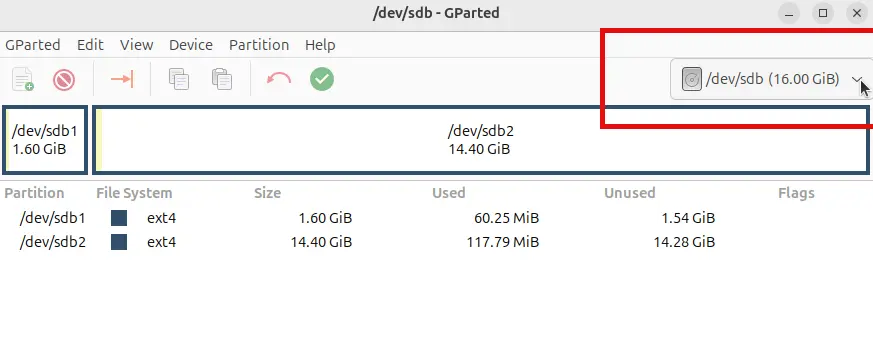
- Open GParted and select your USB drive from the drop-down menu.
- Unmount all partitions: right-click each partition → Unmount.
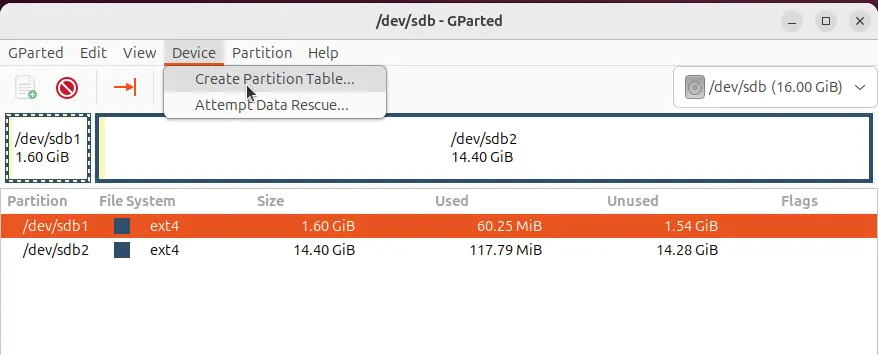
- Create a new partition table: Go to the Device menu at the top and select Create Partition Table.
- Select msdos as the partition table type and click Apply. This will delete all existing bootable partitions.
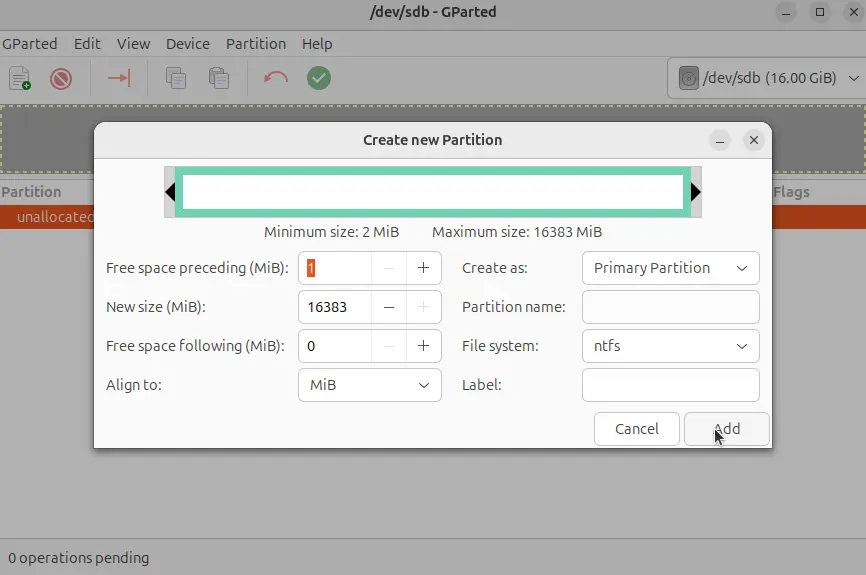
- Create a new partition: Right-click the unallocated space and select New.
- File System: Choose FAT32 or NTFS. Use NTFS if you plan to store files larger than 4GB.
- Label: Enter a custom name for your USB drive.
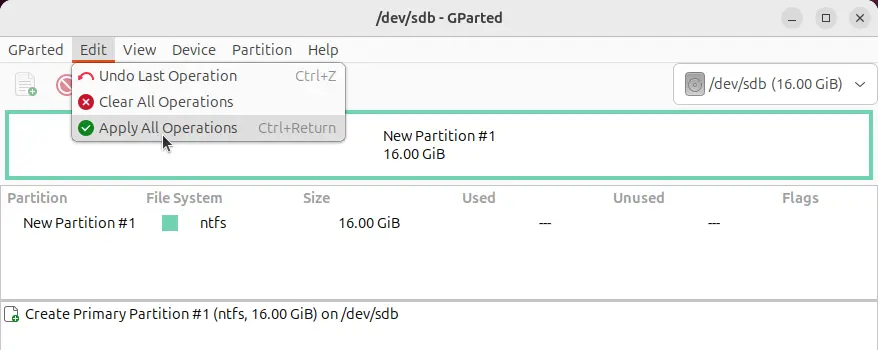
- Apply changes: Go to the Edit menu and select Apply All Operations.
Once applied, your USB drive will be restored to a normal, non-bootable USB.
With GParted, restoring a bootable USB to a normal USB in Linux is fast, safe, and reliable. After following these steps, your USB will function like a regular USB drive again.