How to Disable Caps Lock Key in Ubuntu Desktop
If you find the Caps Lock key more annoying than useful, you can easily disable it on Ubuntu Desktop using a tool called GNOME Tweaks. In this guide, we will walk you through the steps to disable the Caps Lock key on Ubuntu.
What You Need
- Ubuntu Desktop (any recent version)
- Access to the terminal
- sudo privileges
Step 1 — Install GNOME Tweaks
GNOME Tweaks is a free utility that lets you customize your GNOME desktop settings, including keyboard behavior. Install it with the following command:
sudo apt update
sudo apt install gnome-tweaks
Step 2 — Open GNOME Tweaks and Disable Caps Lock
Once installed, open GNOME Tweaks. You can search for it in the Activities menu by typing "Tweaks" and clicking on the app.
Follow these steps inside GNOME Tweaks:
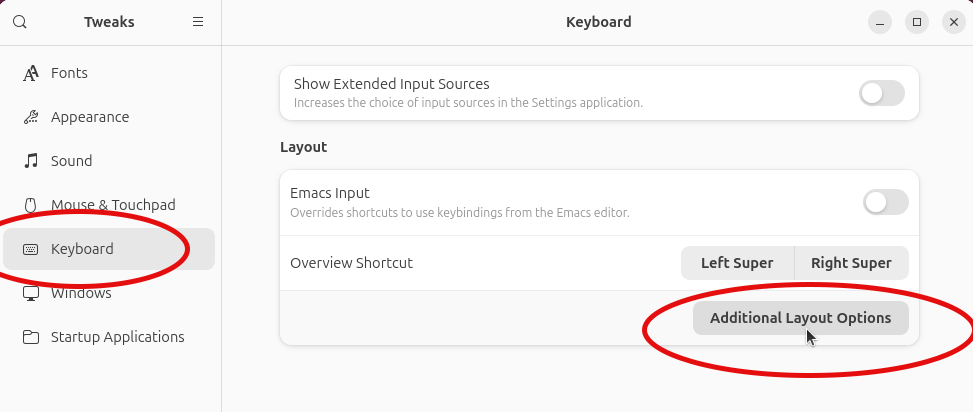
- In the left sidebar panel, go to Keyboard.
- On the right side, click on the button labeled Additional Layout Options.
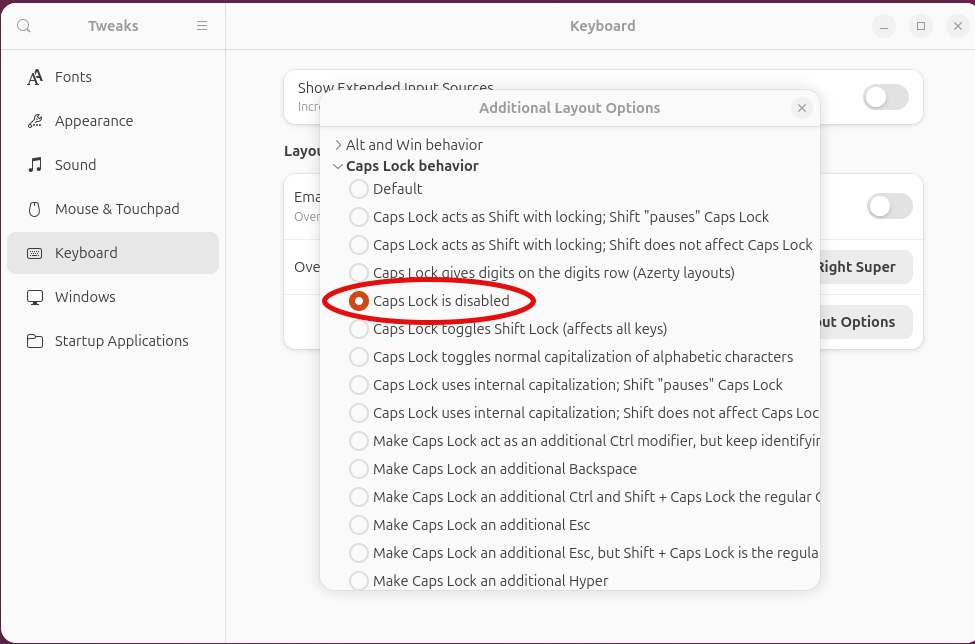
- Find the category named Caps Lock behavior and click the arrow to expand it.
- To turn off the key completely, select the option: Caps Lock is disabled.
- Restart the computer.
Restart Your Computer: After making the change, restart your computer for it to take effect.
Conclusion
That is how to disable the Caps Lock key in Ubuntu Desktop using GNOME Tweaks. This is one of the easiest methods and only takes a few minutes to configure.
If this quick tutorial helped solve your problem, explore more step-by-step tech guides on the RealClearComputing YouTube Channel for beginner-friendly Linux, Windows, and networking tutorials!