How to Enable Root Account in Ubuntu Server (Step-by-Step Guide)
In this guide, we will look at how to enable the root account in Ubuntu Server. By default, the root account is disabled in Ubuntu Server for security reasons. Instead, Ubuntu uses sudo to perform administrative tasks. However, in some server environments, you may need to activate the root account.
Only on Ubuntu Server
Before we start, please note that this guide is only for Ubuntu Server. You should not enable the root account on Ubuntu Desktop; while it will work in the command line, the desktop environment is not designed to work with the root account.
Access the Root Account with Sudo
In a fresh installation, the root account is usually disabled. To begin, you must log into a user account that has sudo privileges.
After logging in, you can run the following command to switch to the root account:
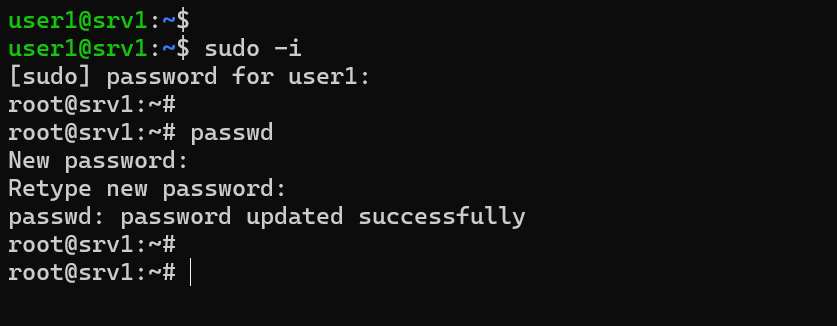
sudo -iWhen you press enter, it will ask for your own password. Once you authenticate, you will be switched to the root account. This is the standard way to access the root account with sudo.
How to Activate the Root Account
From here, if we want to activate the root account, what we need to do is set a password for the root account.
Use the following command to setup the root account password:
passwdThis step will set the root password and officially activate the account. You can now exit your current session and directly log into the root account using your new credentials.
Enable Root SSH Login in Ubuntu Server (Optional)
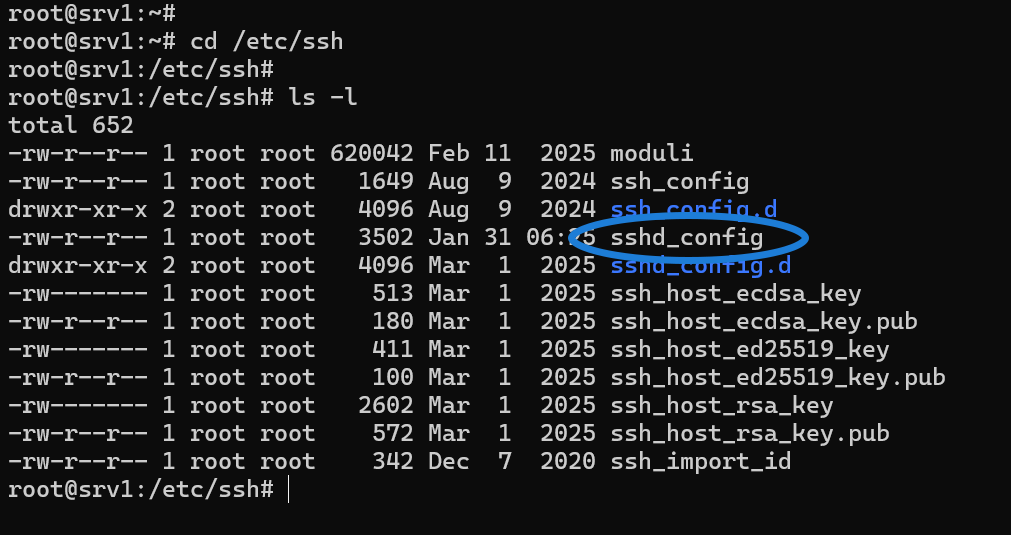
If you need to enable root login via SSH, you must modify the SSH server configuration.
- Navigate to the SSH directory:
cd /etc/ssh - Edit the
sshd_configfile: Thesshd_configfile is the main configuration file for the SSH server. Open it using the Vim text editor:sudo vim sshd_config - Modify
PermitRootLogin: Find the line forPermitRootLogin. - Remove the
#to uncomment the line. If it saysprohibit-password, change it toyes. This will allow root login by SSH. - Save the
sshd_configfile. - Restart SSH Server: For changes to take effect, restart the service using this command:
sudo systemctl restart ssh
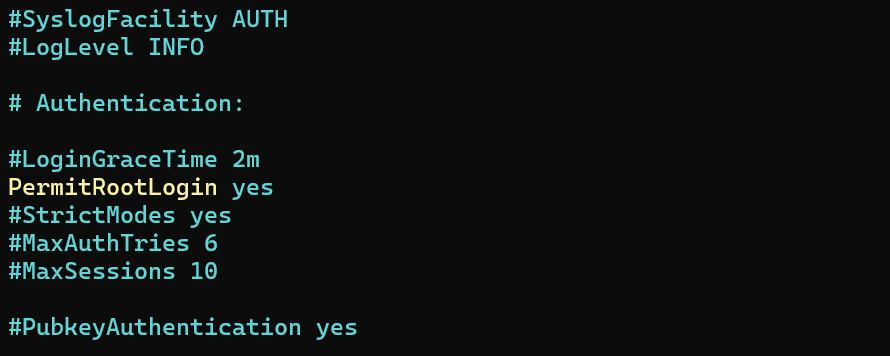
Now you can login as root in Ubuntu via SSH. Open a terminal and try to connect to your Ubuntu Server using the root account.

Final Thoughts
That is it for this guide on how to enable and activate the root account in Ubuntu Server. Remember, enabling root access can be risky, so use it only when required and always follow best security practices.