How to Enable Root SSH Login on Ubuntu Server 24.04
In this guide, we will look at how to enable root SSH login in Ubuntu Server 24. To achieve this, there are two main steps we need to follow: first, we need to enable the root account, and then we need to configure the SSH server to allow root SSH login.
Steps to Allow root SSH Login
- Switch to the Root Account Using Sudo
- Permanently Enable the Root Account
- Configure ssh_config to Allow Root Login
- Restart the SSH Service
Step 1: Switch to the Root Account Using Sudo
On a fresh install of Ubuntu Server, the root account is often disabled by default. So first, log into a user account that has sudo privileges. The user must have sudo privileges.
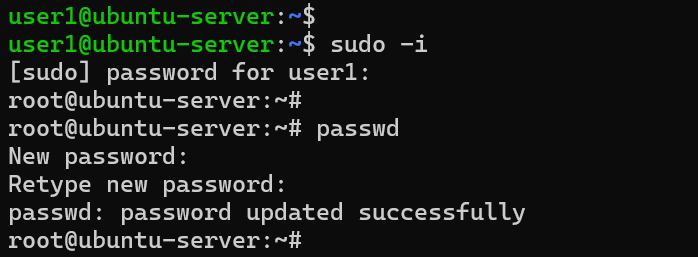
Then run the following command to switch to the root account:
sudo -iAuthenticate using your current user's password. This allows you to operate as root temporarily to perform the next steps.
Step 2: Permanently Enable the Root Account
Now that we are inside the root account, we can permanently enable it by assigning it a password. This allows you to log into the computer directly as root. Run the following command:
passwdEnter and confirm your new password. Once you see "password updated successfully," the root account is officially activated.
Step 3: Configure sshd_config to Allow Root Login
Even with the account active, you cannot SSH into the server yet because of the default SSH configuration. We need to edit the server settings to allow this access.
Navigate to the SSH directory:
cd /etc/sshIdentify the correct config file: In this directory, you will see ssh_config and sshd_config. Make sure to edit sshd_config; the other file is for client-side settings, but for the server, we need the "d" (daemon) version.
Edit the file: Use an editor like nano or vi to open the file. Find the line:
#PermitRootLogin prohibit-passwordModify the value: Remove the comment (#) from the start of the line and change the value to yes. It should look like this:
PermitRootLogin yes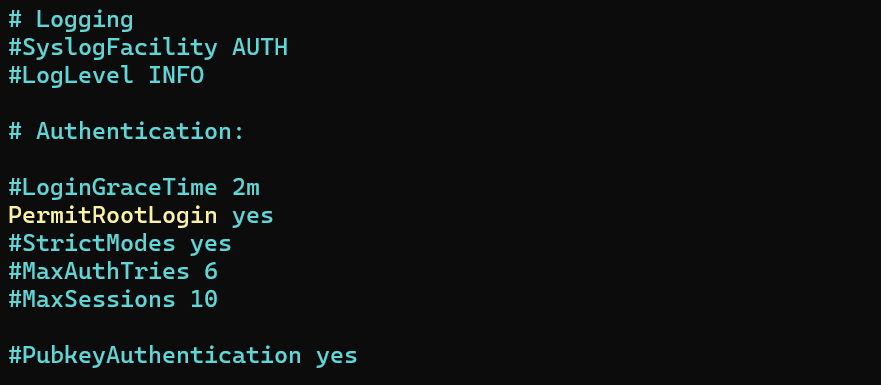
Step 4: Restart the SSH Service
To apply these changes, you must restart the SSH server using the systemctl command:
systemctl restart sshIt is also good practice to check the server status to make sure you did not make any mistakes in the configuration file:
systemctl status sshConclusion
If the status is active and running, everything is working. You should now be able to SSH into this Ubuntu server using the root account.
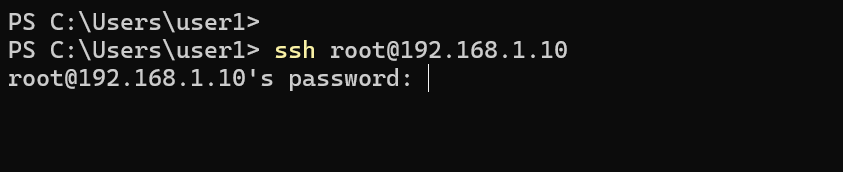
That is how you enable SSH root login in Ubuntu Server 24.