How to Upgrade Google Chrome on Ubuntu: Terminal and GUI Methods
If you are a Linux user, keeping your browser current is essential for security. In this guide, I will show you how to upgrade Google Chrome in Ubuntu. We can update Chrome using both the terminal and the GUI, and I will show you both methods.
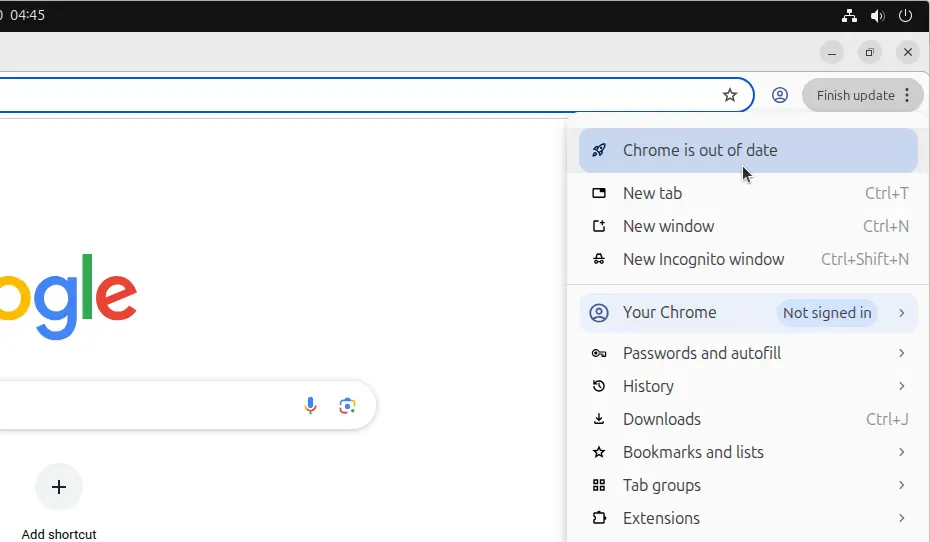
Right now, my Chrome is out of date. You can see the message "Can't upgrade Chrome," and if you click the menu, it says "Chrome is out of date." We will update it now to the latest version.
Method 1: Update Google Chrome via Terminal
The first method is using the terminal. This is often the fastest way to handle updates in Linux.
- Update the package list: Open the terminal and run the following command to refresh your repositories:
sudo apt update - Upgrade the Chrome package: After updating the list, upgrade the specific package using this command:
sudo apt install --only-upgrade google-chrome-stable
Close the terminal and open Google Chrome. You should no longer see the “Chrome is out of date” message. This confirms that the upgrade was successful.
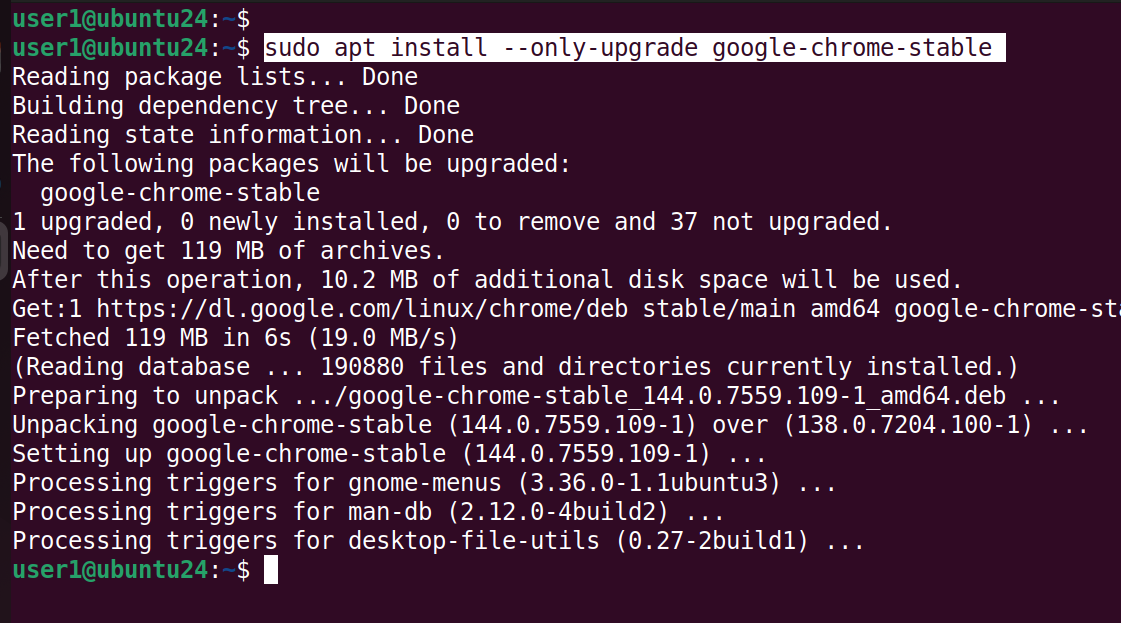
Tip: Find the Google Chrome Upgrade Command Again
Once the upgrade is finished, you can exit the terminal. If you ever forget the command in the future, just type history in your terminal to find it again.
historyYou will see the command that was used to upgrade Google Chrome on Ubuntu.
Method 2: Update Google Chrome using the GUI
If you prefer not to use the terminal, you can also upgrade Chrome using the Ubuntu graphical user interface:
- Open the Software Updater app.
- Look for the Google Chrome update listed under Other updates.
- Ensure the checkbox next to Google Chrome is activated.
- Click Install Now.
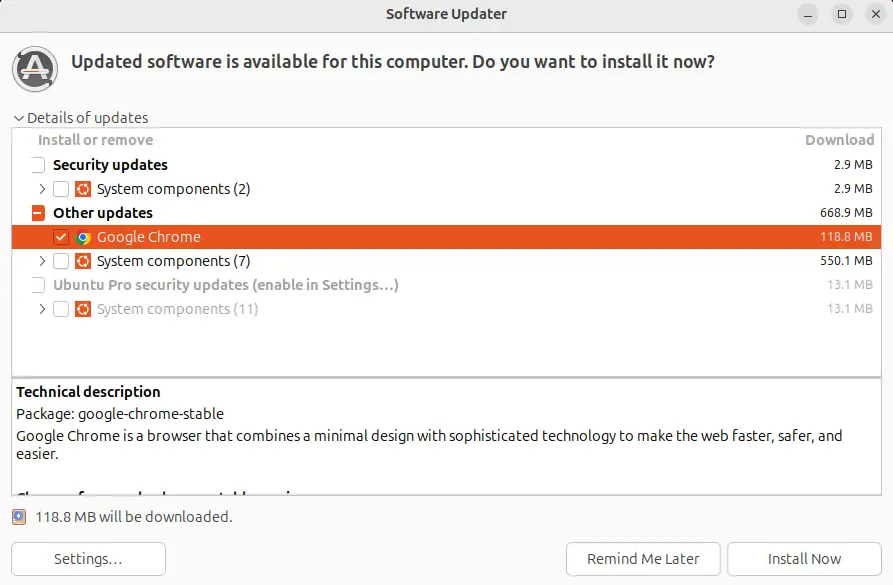
Your browser is now updated! You will notice that the "out of date" message is gone, and you are running the latest version.
How to Fix Duplicate Google Chrome Icons on Ubuntu
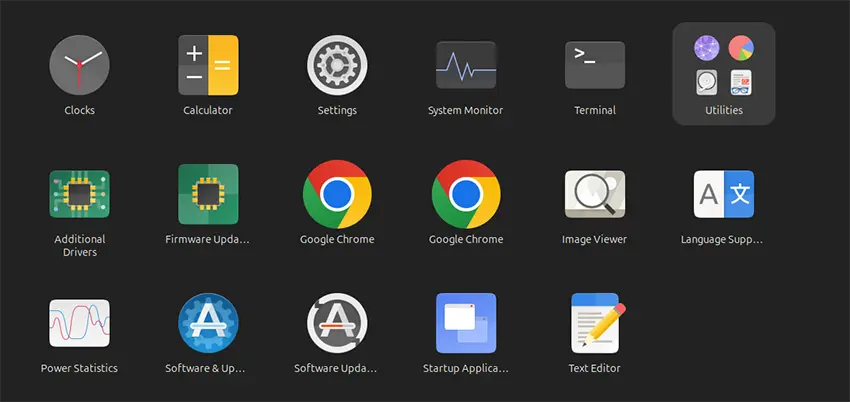
With the latest upgrade, you might see two launch icons for Chrome in your applications menu. This is a known bug where Google creates a new desktop file (com.google.Chrome.desktop) but keeps the old one (google-chrome.desktop).
To learn how to fix the duplicate Google Chrome icon problem, click this link.