How to add persistent routes in windows using CMD route add command
In this article, I will show you how to add a permanent static route in Windows using the route add command.
- This method works on Windows 10, Windows 11, and all Windows Server versions.
- The
routecommand also works in both CMD and PowerShell, so you can use whichever you prefer.
If you need to add persistent routes, manage your Windows routing table, or learn how to delete routes, this guide will walk you through everything step by step.
What Is a Persistent Route in Windows?
A persistent route also known as a permanent static route is a static route that stays in the Windows routing table even after a restart. Normally, routes added without the -p option disappear after reboot. So if you need a route to stay permanently, you must use route add -p.
Basic Syntax of the route add Command (CMD)
Here is the basic syntax for adding a static route in Windows:
route add -p <destination> mask <subnet mask> <gateway>
route add -p <destination> mask <subnet mask> <gateway> metric <value> if <interface ID>
Explanation:
-p: makes the route permanent (persistent)- destination: network ID or single IP address (host route)
- mask: subnet mask
- gateway: router IP address used to reach the destination
Optional parameters:
metric: sets the route metricif: specifies the network interface the route should use
The metric and if options are not required.
Examples
First, open Command Prompt as Administrator. You can right-click the Start button and select "Terminal (Admin).
Now add a permanent static route:
route add -p 192.168.10.0 mask 255.255.255.0 192.168.1.1192.168.10.0: destination network255.255.255.0: subnet mask192.168.1.1: default gateway/router IP
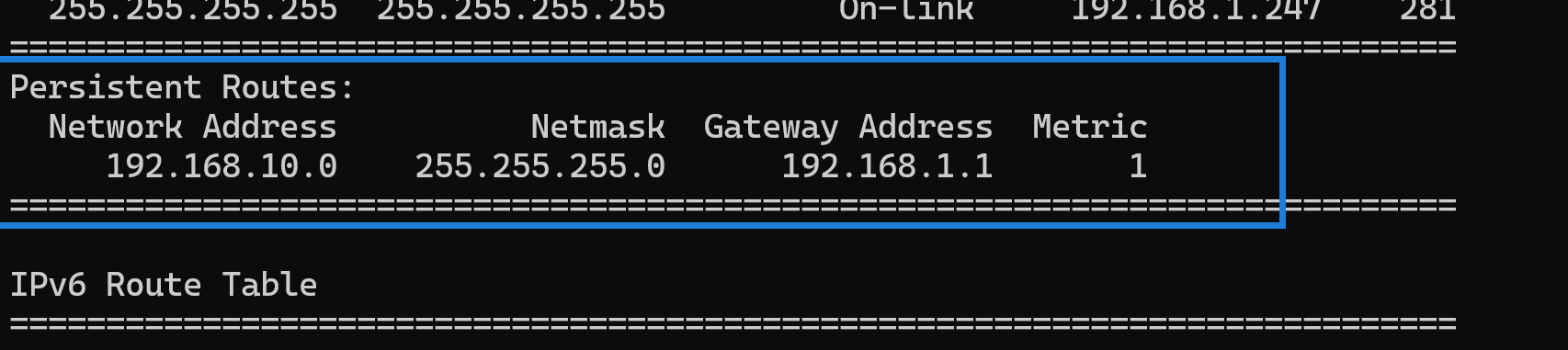
To confirm that the persistent route was added, run:
route printLook under the Persistent Routes section in the IPv4 Route Table.
How to Add a Host Route (Single IP Address)
A host route is a route to a single IP address instead of an entire network. The mask must be 255.255.255.255.
route add -p 192.168.20.1 mask 255.255.255.255 192.168.1.1Print only the IPv4 routing table with:
route print -4Your host route will appear under Persistent Routes.
Route Add Examples with Metric and Interface ID
Route Add example using metric:
route add -p 192.168.50.0 mask 255.255.255.0 192.168.1.1 metric 5Route Add example using Interface ID:
route add -p 192.168.60.0 mask 255.255.255.0 192.168.1.1 if 12(Replace 12 with the actual interface ID shown in route print.)
Route Add example using both Metric and Interface ID:
route add -p 192.168.70.0 mask 255.255.255.0 192.168.1.1 metric 3 if 12How to View the Windows Routing Table
To view all routes:
route printThis displays IPv4 routes, IPv6 routes, and all persistent static routes.

Getting Help for the route Command
If you need help or forget the syntax, type:
routeThis displays:
- examples of
route add - examples of
route delete - how to print the routing table
- IPv4 and IPv6 route example
How to Delete a Persistent Route in Windows
To delete a route, use the route delete command followed by the destination.
Print the routing table first:
route printDelete routes using:
route delete 192.168.10.0
route delete 192.168.20.1
Confirm removal:
route printThat’s how you add permanent static routes in Windows, how to use the route add command, how to view the routing table, and how to delete static routes when they’re no longer needed. This works in both CMD and PowerShell, and on all modern versions of Windows.