Windows Color Picker Tool: How to Get HEX & RGB Codes
In this article, I will show you how to add the color picker to your Windows PC using Microsoft PowerToys.
If you want to pick any color from your screen or an image and get HEX or RGB values instantly, this method is simple and fast.
Install Microsoft PowerToys on Windows
So the first thing we need to do is install Microsoft PowerToys.
You can get it from the Microsoft Store. As well as, you can run a command from your Command Prompt to install it using the Winget command.
What you need to do is run the following command in the Command Prompt:
winget install --id Microsoft.PowerToys --source winget- Right-click the Start button
- Click Terminal
- Right-click inside the terminal window to paste the command
- Then press Enter
This will install the PowerToys tool on your Windows 10 or Windows 11 PC.
How to Enable the Windows Color Picker
Once installed, open PowerToys and search for Color Picker. You can also find it under the System Tools section.
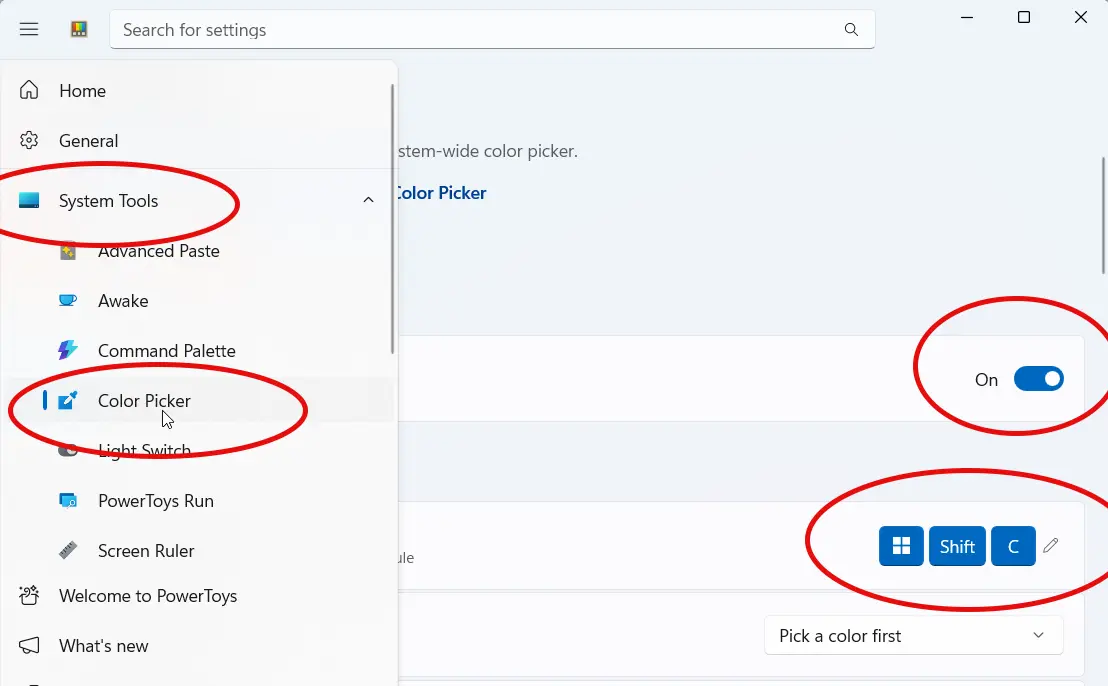
- Enable the Tool: Make sure the toggle switch is set to On.
- Keyboard Shortcut: Use
Windows + Shift + Cto activate the module. - Background Running: You don't have to keep PowerToys open; the color picker will work even if you close the main app.
How to Pick Any Color on Your Screen
To use the tool, go to your screen, any app, or an image, and press the shortcut Windows + Shift + C. This activates the color picker module next to your mouse cursor.
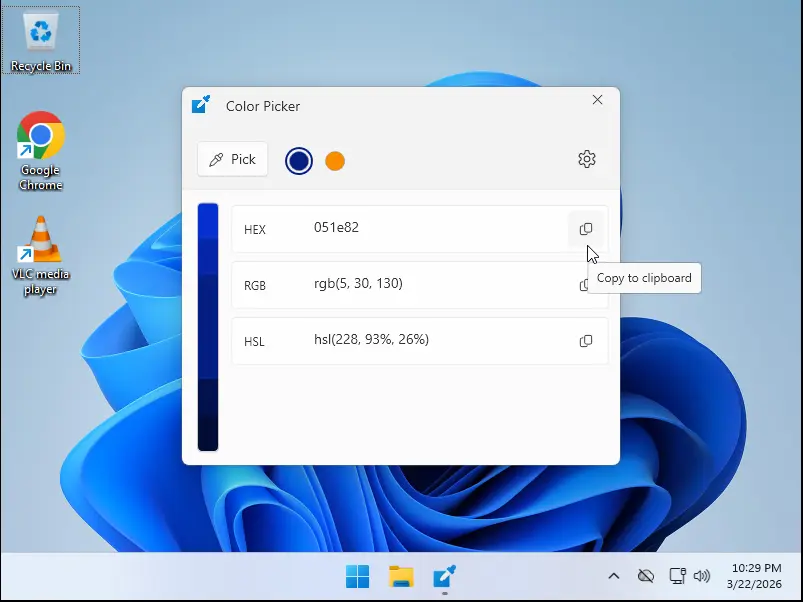
As you move the mouse, it will show the color you are currently on. To pick a color, simply left-click. This opens a window showing the color in different formats, including HEX and RGB.

For example, if you want the HEX code, you can click the copy button, and it will copy it to the clipboard.
Why Use a Color Picker in Windows?
A color picker is useful if you:
- Want to copy colors from websites or images
- Need HEX or RGB values for design or development
- Work with UI, graphics, or web design
With Microsoft PowerToys, you can pick any color anywhere on your screen instantly.