How to Create Files in Windows Command Prompt (CMD)
If you want to create a text file in the Windows Command Prompt, you have to use the notepad command. Unlike Linux, Windows does not have a built-in command line editor like Vim or Nano. Instead, you have to launch the Notepad editor directly from the prompt.
Creating a Text File Using Notepad
To create a file, first navigate to your target directory. For example, you can use cd to enter your Documents folder:
cd DocumentsTo create a new file called file1.txt, type the following command:
notepad file1.txtThis command will open the Notepad editor and attempt to create a file called file1.txt.
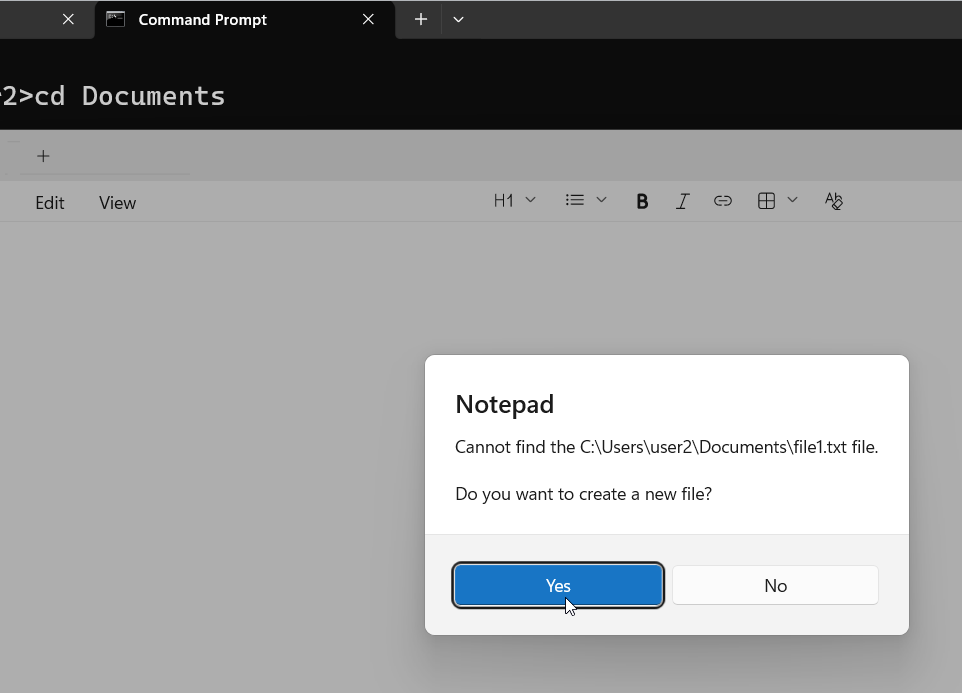
- If the file does not already exist, Notepad will ask: "Do you want to create a new file?"
- Click Yes, and a new file will be created in your current working directory.
Now you can edit the file in Notepad just like any regular text file. Once done, save and close it.
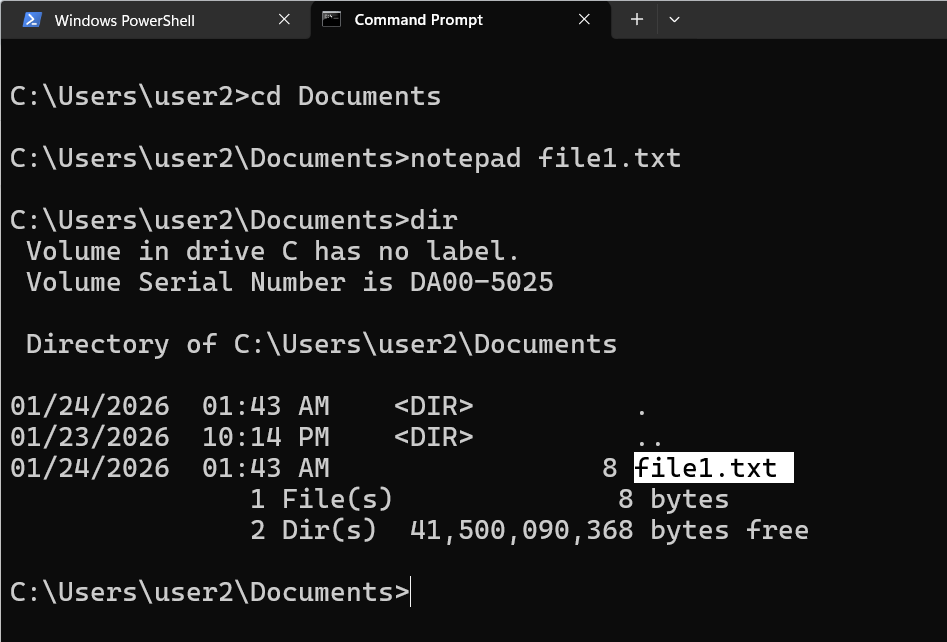
You can verify the file was created by running the dir command.
Creating Files with Visual Studio Code (VS Code)
If you have Visual Studio Code installed, you can use the code command to create and edit files. To create a file named file2.txt, enter:
code file2.txtThis opens the file in VS Code. Once you edit and save, the file is created.
Opening Directories in VS Code
You can also open an entire folder in Visual Studio Code using the following command:
code .In the Command Prompt, the period (.) stands for the current working directory. Running this command will launch the entire folder inside VS Code.
How to Read File Content in CMD
To read the contents of a file without opening an editor, use the type command:
type file1.txtIf you are using PowerShell, the cat command also works. However, the cat command will not work in the standard Windows CMD; you must use type there.
Editing Files with Administrative Privileges
Some files require administrative privileges to edit. To handle these, you must first open the Command Prompt as an administrator:
- Right-click the Start button.
- Select Terminal (Admin) or Command Prompt (Admin).
- Launch Notepad from this window.
By opening the terminal as an administrator first, the Notepad instance you launch will also have the necessary permissions to edit restricted files.
Summary Table: CMD File Commands
| Task | Command |
|---|---|
| Create/Edit with Notepad | notepad filename.txt |
| Create/Edit with VS Code | code filename.txt |
| Open Folder in VS Code | code . |
| View File Content (CMD) | type filename.txt |
| List Files in Directory | dir |
Summary
Creating text files in Windows Command Prompt is simple once you know the right commands:
- Use Notepad to create and edit files because CMD doesn’t have a built-in text editor.
- Use
dirto verify the file exists. - Use VS Code and the
codecommand if installed. - Use
typeto read file content in CMD, orcatin PowerShell. - Open CMD as administrator to edit files that require elevated privileges.
By following these steps, you can easily create, read, and edit text files in Windows CMD or PowerShell.