How to Switch to a Local Account in Windows 11 (2026 Guide)
If you want to move away from cloud-based logins, this guide shows you exactly how to switch to a local account from a Microsoft account in Windows 11. Using a local account can improve privacy and allow you to log in without an internet connection.
Step 1: Open Windows 11 Settings
First, log into your current Microsoft account. To begin the process of switching:
- Right-click the Start button.
- Select Settings from the list.
Step 2: Create a New Local User Account
Once you are in the Settings menu, follow these steps to add a user without a Microsoft account:
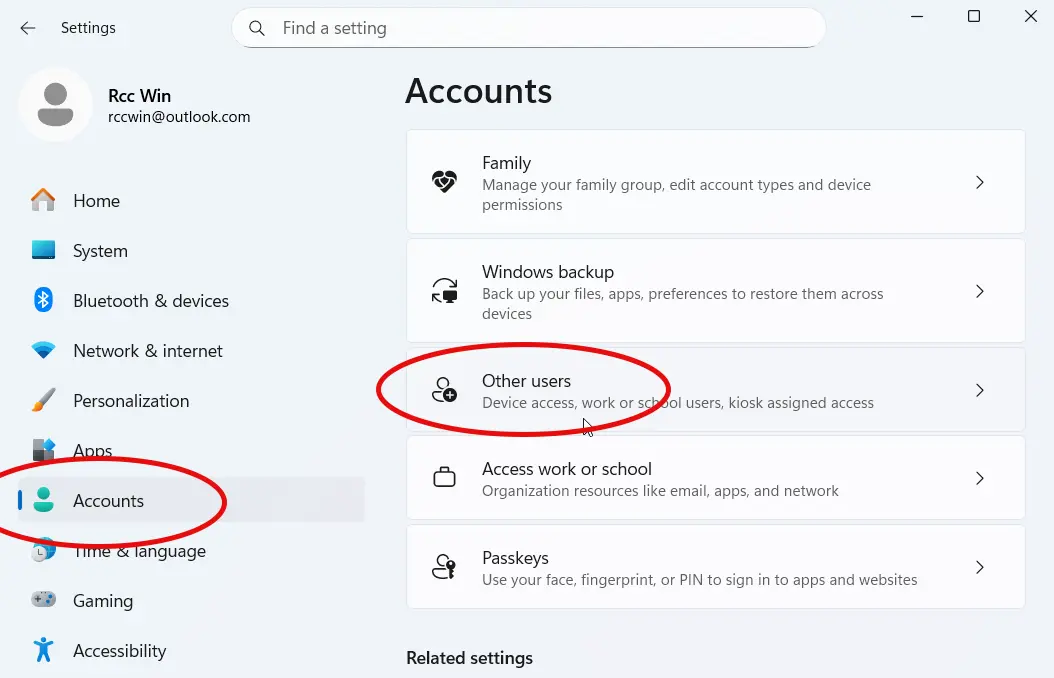
- Go to Accounts and then select Other users.
- Click Add account.
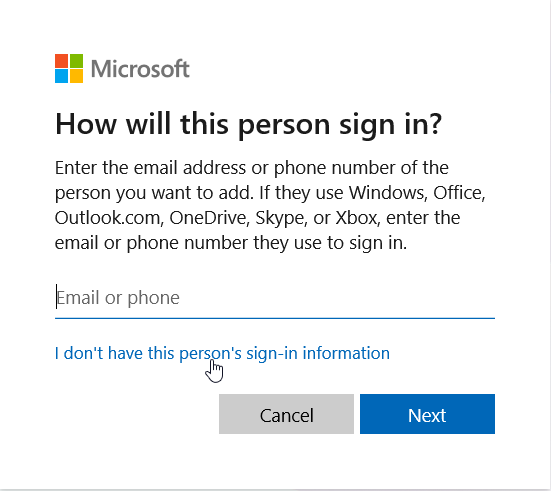
- On the sign-in screen, select I don't have this person's sign-in information.
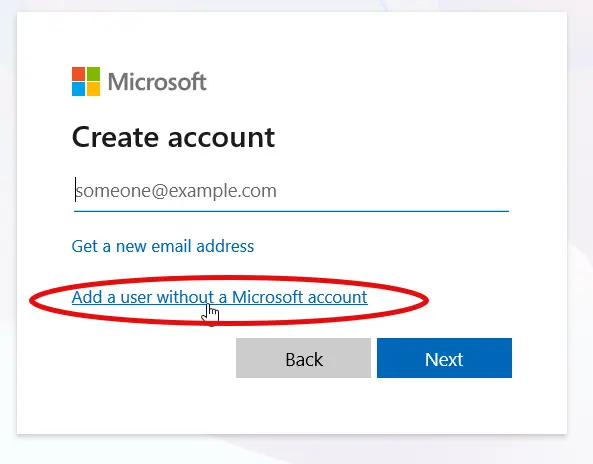
- Click the link: Add a user without a Microsoft account.
- Give your new local user a name and a password.
- Answer the security questions and click Next.
Step 3: Change the Account Type to Administrator
To ensure you have full control over your PC, you must make this local account an Administrator account:
- Find your new local account under Other users.
- Click Change account type.
- Select Administrator from the dropdown menu and click OK.
Now you can sign out of your current Microsoft account and log in to the new local account.
Delete the Microsoft Account (Optional)
Since your local account is now an Administrator, you can delete the Microsoft account if you want.
- Go to Settings > Accounts > Other users.
- Locate the Microsoft account and click Remove.
Important: Make sure that you back up all user data before you click delete. All user files associated with that account will be removed during this process.
Conclusion
That’s how you can switch to a local account from a Microsoft account in Windows 11.
The important thing is to first create a new local account, make it an administrator account, sign in to that account, and then optionally remove the Microsoft account if you no longer need it.
This is a simple way to use Windows 11 without a Microsoft account and keep your login completely local to the computer.