How to Fix “Sysprep Was Not Able to Validate Your Windows Installation”
If you're running the Sysprep tool on Windows and getting the error "Sysprep was not able to validate your Windows installation", don't worry — this is a common issue, and it's usually caused by one specific app package that's blocking the process. In this guide, I'll show you exactly how to find that package and remove it, step by step.
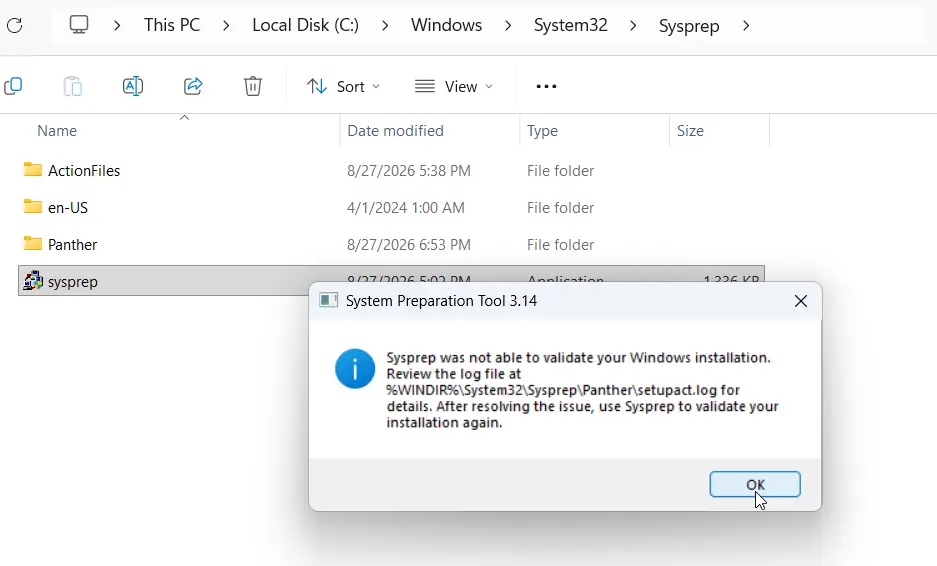
Step 1: Find the Sysprep Log File
When Sysprep fails, it points you to a log file that lists exactly what went wrong. This log file is:
setupact.logYou'll find it inside this folder:
C:\Windows\System32\Sysprep\PantherStep 2: Open the Log and Find the Problem Package
Go into the Panther folder and open the new setupact.log file. Look for a line that mentions a specific app package. In this example, the log pointed to:
Microsoft.OneDriveSyncYour log file will show the full package name, which is longer than this — something like:
Microsoft.OneDriveSync_<version>_<architecture>__8wekyb3d8bbweCopy the full package name exactly as it appears in your log. You'll need it in the next step.
Step 3: Remove the Package Using PowerShell
Here's where we fix the actual problem — by removing the package that's blocking Sysprep.
Open PowerShell as Administrator and Run the following command, replacing the package name with the exact one from your log file:
Remove-AppxPackage -Package 'PackageName' -AllUsersIf the command runs with no output, that's a good sign — it means there were no errors.
Step 4: Run Sysprep Again (Don't Restart the Computer)
Immediately after removing the command, go back to the Sysprep tool and run it again. If Sysprep completes without throwing the validation error again and shuts down the PC as expected, the fix worked. If it still fails, open setupact.log again — there may be a second package causing the same issue, and you can repeat Steps 2–3 for that one too.
FAQ
Why does Sysprep fail with this validation error? This usually happens because a pre-installed or provisioned app package (like OneDrive) isn't compatible with the generalization process. Sysprep flags it in the log and refuses to continue until it's removed.
Is it safe to remove the flagged package? Yes. Removing a provisioned package only affects new user profiles created after generalization — it doesn't damage your current Windows installation.
What if there's more than one problematic package? Check the log file again after fixing the first one. If there are other conflicting packages, remove them the same way, one at a time, until Sysprep runs cleanly.