How to Shut Down Windows Using Your Keyboard (3 Easy Shortcuts)
If you need to shut down your Windows computer using only the keyboard, there are several ways to do it quickly without a mouse. Whether your mouse is broken or you just want to work faster, these keyboard shortcuts for Windows 10 and Windows 11 will help you manage your power options.
Method 1: Shutdown Using Windows + X Shortcut
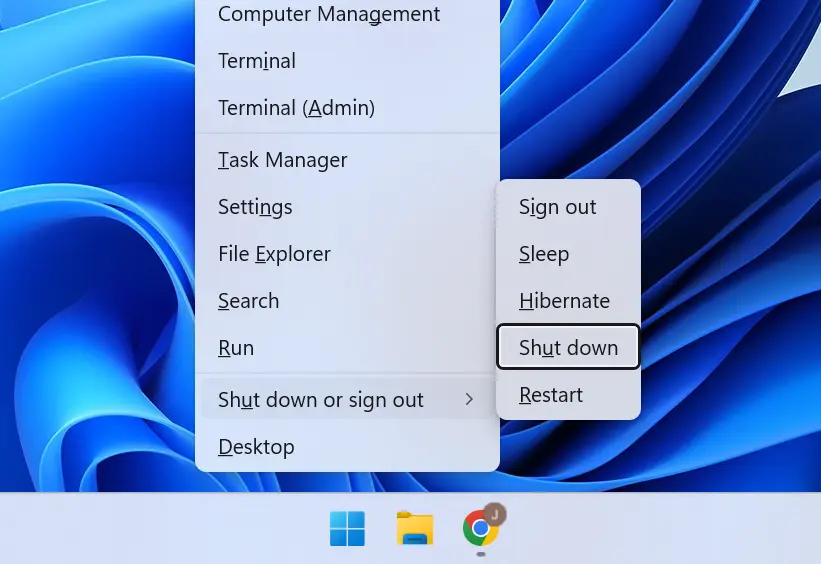
The Windows + X shortcut opens the Quick Link menu. This is the same menu you see when you right-click the Start button.
- Press
Windows + Xto open the menu. - Use the up and down arrow keys to navigate through the options.
- Highlight the Shut down or sign out menu.
- Press Enter to choose between Shut down, Restart, or Sleep.
Method 2: Use the Command Prompt (Shutdown Command)
You can also use the Run dialog to execute a shutdown command. This method is useful if you want to set a timer.
- Press
Windows + Rto open the Run dialog box. - Type
cmdand press Enter to open the Command Prompt. - To shut down immediately, type:
shutdown /s /t 0 - To restart the computer, type:
shutdown /r /t 0
Pro Tip: You can set a time delay in seconds. For example, shutdown /s /t 60 will shut down the computer in one minute. If you change your mind, type shutdown /a (A for abort) to cancel the scheduled shutdown.
Method 3: Shutdown Using Alt + F4
There is also another keyboard shortcut: Alt + F4, but this won’t work unless you are on the desktop.
- Press
Windows + Dto show your desktop - Then press
Alt + F4
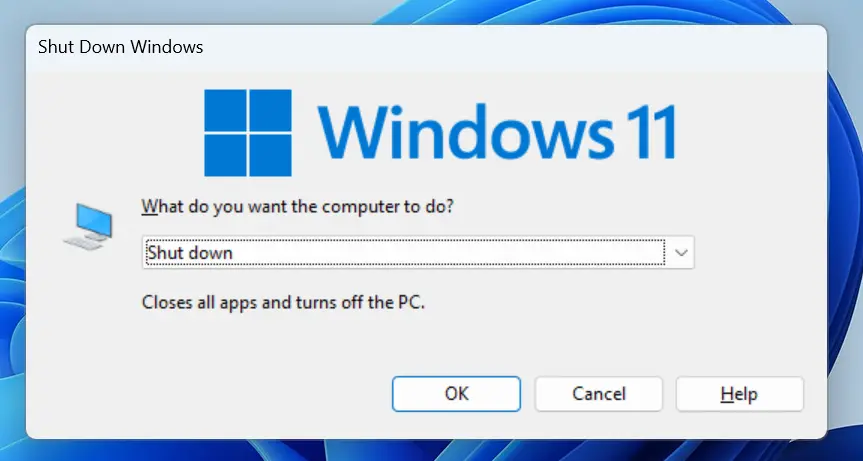
This will open the Shut Down Windows dialog box.
One more thing
If you have an active window open and press Alt + F4, it will close that window.
If you press Alt + F4 again, it will eventually open the shutdown dialog box. So if you keep pressing it, you will get the shutdown option.
Why Use Keyboard to Shut Down Windows?
- If your mouse is not working
- Faster than using the Start menu
- Useful for remote access or troubleshooting
- Helps improve productivity with shortcuts
Conclusion
So that’s how you shut down a Windows PC using just the keyboard. These methods are simple, but very useful if you want to shutdown your computer without a mouse.